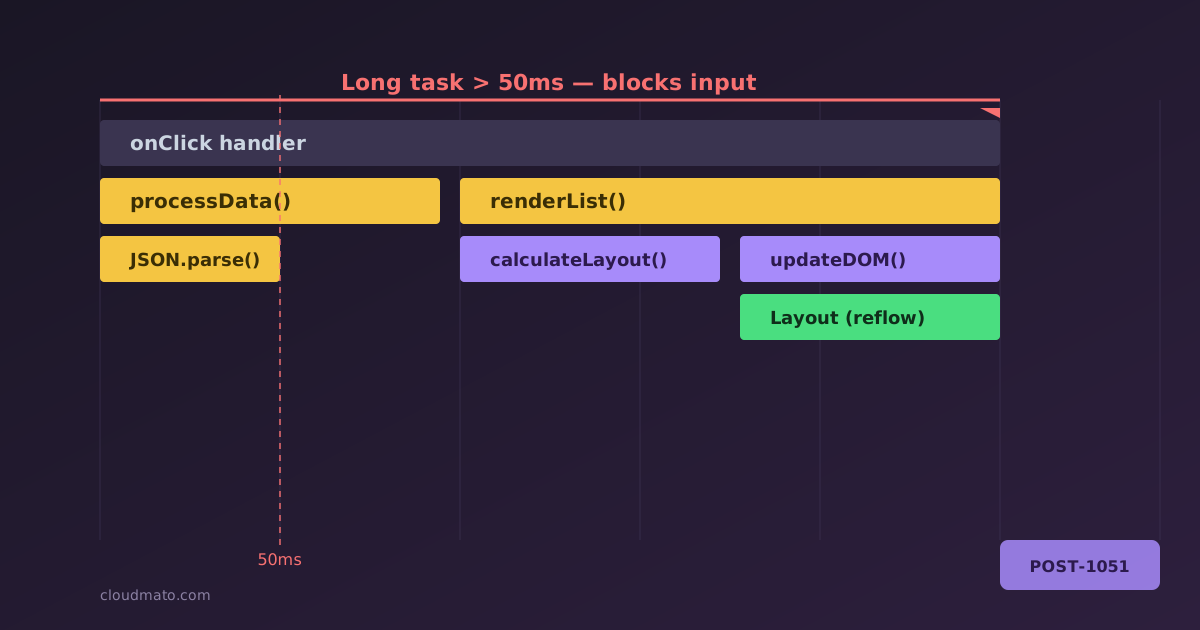
Open the Performance panel in Chrome DevTools for the first time and it looks like someone spilled a box of crayons across your screen. Dozens of colored bars, half a dozen tracks, three tabs at the bottom that all seem to show the same thing but slightly differently. No wonder most devs record one trace, get scared, and go back to console.log debugging. I did exactly that for years - until I actually sat down and learned what each piece means, and now it’s the first tool I reach for when something “feels slow.”

Your app is getting slower over time. Scroll position jumps. Tabs are consuming 800 MB of RAM. You open Task Manager and watch Chrome eat memory like it’s buffet day. Something is leaking — but where? The Chrome DevTools Memory tab is sitting right there, and most developers either ignore it or open it once, get confused by “Shallow Size” and “Retainers,” and quietly close it. This guide is for people who want to actually use it.
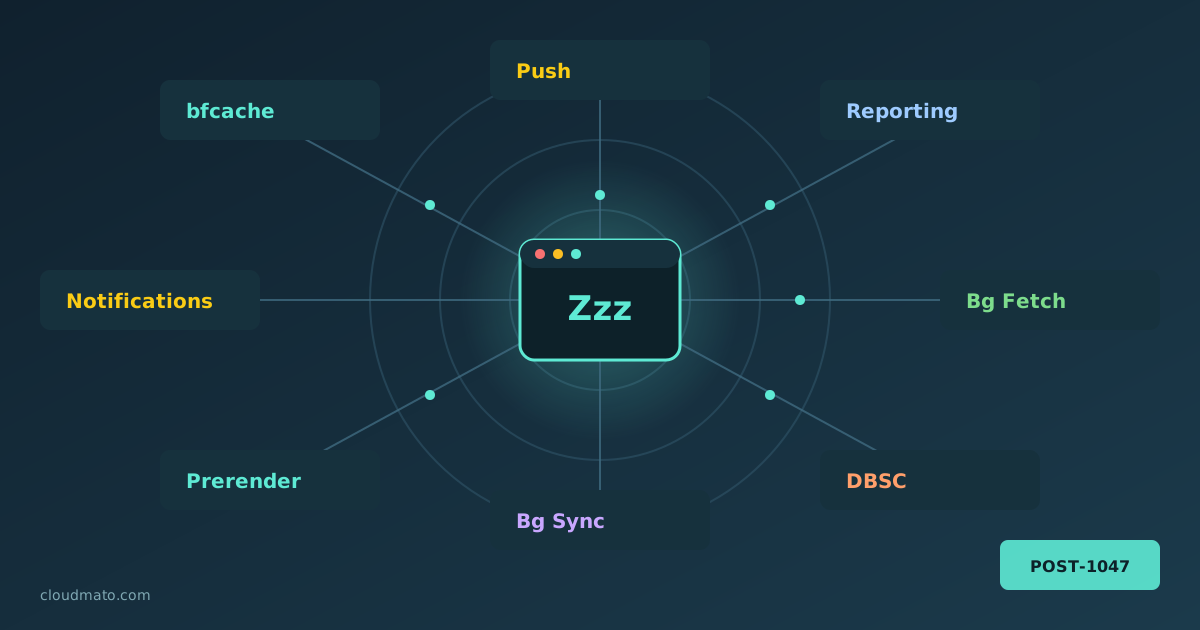
Your web app is probably doing things you’ve never actually debugged. Pages being prerendered before the user clicks anything, form submissions silently queued while offline, push notifications arriving at a sleeping service worker, sessions cryptographically bound to hardware keys — all of this happens through Chrome’s background service APIs, running completely invisibly. The Background Services panel in Chrome DevTools is where you finally get to watch all of it.
Finding the Panel Open DevTools (F12 or right-click > Inspect), go to the Application tab, and scroll the left sidebar until you hit the “Background Services” section. You’ll find a list covering essentially every “invisible” API Chrome supports: