Remember when GIFs were basically the only way to show something moving on a webpage without dragging in a full video player? Spinning loaders, little waving mascots, “loading…” icons — all GIFs, all looking slightly blurry and oddly heavy for something so small. Turns out there’s been a much better option sitting right under our noses for years: the animated SVG. Let’s get into how you actually build one, and whether it really deserves to replace GIF.
So What Even Is an Animated SVG?
An SVG (Scalable Vector Graphics) file isn’t a picture in the traditional sense — it’s a text file written in XML that describes shapes using math: “draw a circle here, this big, this color” or “draw a path that goes from point A to point B.” Because a browser renders that math live, every time, an SVG looks razor sharp whether it’s 16px or 1600px wide [1].
Now here’s the part that makes this whole article possible: since an SVG is just markup describing shapes, you can change the values in that markup over time. Move the circle’s cx attribute from 50 to 450, rotate a rectangle, fade a path’s opacity from 0 to 1 — do any of that gradually, and boom, you’ve got an animation. No frames, no separate images, just numbers changing.
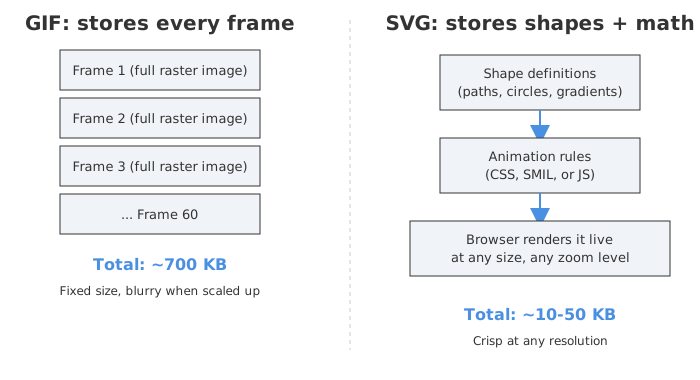
This is fundamentally different from a GIF, which is a stack of fully-rendered raster images flipped quickly one after another, like a flipbook. We’ll come back to why that distinction matters a lot.
Three Ways to Actually Animate an SVG
There isn’t just one way to do this, and honestly that’s both a blessing and a curse — too many options can be paralyzing. Here’s the breakdown.
Method 1: SMIL — animation baked right into the file
SMIL (Synchronized Multimedia Integration Language) is SVG’s native animation syntax. You add special elements like <animate>, <animateTransform>, and <animateMotion> directly inside your shapes, and the SVG animates itself — no CSS, no JavaScript, nothing extra needed.
<svg width="200" height="200" viewBox="0 0 200 200">
  <circle r="20" cx="50" cy="100" fill="#4a90e2">
    <animate
      attributeName="cx"
      from="50"
      to="150"
      dur="1s"
      repeatCount="indefinite" />
  </circle>

  <rect x="80" y="20" width="40" height="40" fill="orange">
    <animateTransform
      attributeName="transform"
      attributeType="XML"
      type="rotate"
      from="0 100 40"
      to="360 100 40"
      dur="2s"
      repeatCount="indefinite" />
  </rect>
</svg>
The from/to/dur/repeatCount pattern is pretty readable once you see it a couple of times. You can even trigger animations on events with begin="click" [3].
Here’s where it gets messy though. Back around 2015-2016, Chrome’s team announced they wanted to deprecate SMIL entirely and push everyone toward CSS Animations and the Web Animations API instead [2]. Developers pushed back hard — turns out things like path morphing and animating SVGs embedded via <img> tags simply have no CSS equivalent. Chrome backed off, SVG 2 kept every animation element, and SMIL is still alive and well in every major modern browser today [4]. So no, SMIL is not dead, despite the scare. It’s just… not the recommended first choice anymore for most everyday animations, mainly because the syntax feels foreign if you already think in CSS.
Method 2: CSS animations — the modern default
This is where most people land, and for good reason — if you already know CSS, you basically already know how to animate SVG. You can target SVG elements with regular selectors and animate properties like transform, opacity, fill, and a bunch of SVG-specific properties [1][5].
.gear {
  transform-origin: center;
  animation: spin 3s linear infinite;
}

@keyframes spin {
  from { transform: rotate(0deg); }
  to   { transform: rotate(360deg); }
}
The real party trick of CSS-based SVG animation, though, is the classic “line drawing” effect — you’ve definitely seen logos or signatures that look like they’re being drawn by an invisible pen. That’s done with two properties: stroke-dasharray and stroke-dashoffset [6].
Here’s the gist: stroke-dasharray lets you turn a solid line into a dash pattern. If you set it to a number equal to (or bigger than) the total length of the path, you essentially create one dash that’s the entire line, followed by one gap that’s also the entire line. Then stroke-dashoffset shifts where that dash starts. Animate the offset from the full length down to zero, and the “dash” appears to slide into place — which looks exactly like the line is being drawn [7].
.signature-path {
  stroke-dasharray: 1000;
  stroke-dashoffset: 1000;
  animation: draw 3s ease forwards;
}

@keyframes draw {
  to { stroke-dashoffset: 0; }
}
The only annoying bit is figuring out the actual path length (1000 in this example is just a placeholder — you’d typically grab the real value with path.getTotalLength() in JavaScript or just eyeball a number bigger than the path and adjust).
Method 3: JavaScript libraries — when you need real control
CSS keyframes are great until you need something like “animate this shape along a wiggly custom path while it also rotates and changes color halfway through, then morphs into a completely different shape.” At that point, reach for a JavaScript animation library. GSAP (GreenSock) is the go-to here — it can animate basically anything JavaScript can touch, with a MotionPathPlugin specifically for moving objects along SVG paths, plus tools for “drawing” strokes and morphing one path into another [8].
gsap.to("#rocket", {
  duration: 4,
  repeat: -1,
  ease: "power1.inOut",
  motionPath: {
    path: "#flightPath",
    align: "#flightPath",
    autoRotate: true,
  },
});
It’s overkill for a simple hover effect on an icon, but for hero-section illustrations or scroll-triggered storytelling animations, it’s the right tool.
Quick Comparison of the Three Methods
| Method | Best for | Pros | Cons |
|---|---|---|---|
| SMIL | Self-contained animations baked into the SVG file | No external dependencies; works even when SVG is used as <img> | Syntax feels unfamiliar; was nearly deprecated once (caused trust issues) |
| CSS | Hover effects, loops, simple transitions, line-drawing | Familiar syntax, GPU-accelerated, easy prefers-reduced-motion support | Limited for complex path morphing or sequencing |
| JavaScript (GSAP etc.) | Complex sequences, scroll triggers, path morphing | Total control, great browser-consistency, rich plugin ecosystem | Adds a script dependency; needs the SVG to be accessible in the DOM |
Or… skip the code entirely
If hand-writing keyframes isn’t your idea of fun, tools like SVGator give you a timeline-based editor — drag your SVG in, set keyframes visually, and export clean CSS, SMIL, JavaScript, or even Lottie JSON [13]. It’s not going to replace knowing the fundamentals, but for quick wins (animated logos, simple icon transitions) it’s genuinely useful, especially if you’re a developer who isn’t great with visual timing and easing curves.
Getting It Onto Your Page Without Breaking the Animation
This part trips people up constantly. Where you place your SVG in HTML actually determines whether your animation works at all.
| Embedding method | CSS animation works? | SMIL works? | JS-driven animation works? | Notes |
|---|---|---|---|---|
Inline (<svg> directly in HTML) | ✅ Yes | ✅ Yes | ✅ Yes | Most flexible — it’s part of the DOM, no extra request |
<img src="..."> | ✅ Yes (if defined inside the SVG file) | ✅ Yes | ❌ No | Browser treats it as an opaque image; can’t be styled from your page’s CSS or touched by your page’s JS |
<object data="..."> | ✅ Yes | ✅ Yes | ✅ Yes (with extra work) | Loads as a separate document; JS can reach in, but it’s clunkier |
CSS background-image | ✅ Yes (if defined inside the file) | ✅ Yes | ❌ No | Same limitations as <img> |
The short version: if your animation logic lives entirely inside the SVG file itself (SMIL, or CSS written inside a <style> tag in the SVG), then <img>, <object>, or inline all work fine for the visual animation. But the moment you want your page’s CSS or JavaScript to reach in and control the SVG — say, pausing an animation on hover, or changing colors based on a theme toggle — you need it inline [9][10].
This is also exactly why SMIL still matters in 2026: it’s the only animation method that survives being dropped into a plain <img> tag, which is the simplest and most cache-friendly way to use an SVG.
Okay, But Is It Actually Better Than a GIF?
Here’s where I think most “SVG vs GIF” articles get a little breathless, so let me try to keep this grounded. For most use cases — yes, animated SVG wins, and it’s not close. But “better” depends on what you’re animating.
Sara Soueidan ran an actual head-to-head comparison years ago that’s still the reference point people cite, and the numbers are kind of wild [9]:
- A simple animated GIF came in at 19.91 KB, while the equivalent SVG animation was 0.249 KB — roughly 80x smaller for the same effect.
- A real homepage swapped its hero animations from GIF to SVG and dropped from 1.6 MB to 389 KB, cutting load time from 8.75 seconds to 412 milliseconds.
Cloudinary’s comparison backs this up too, generally putting SVG animations at 10-50x smaller than equivalent GIFs [10]. Why such a massive gap? It comes back to that “flipbook vs. math” distinction from earlier.
Beyond size, there’s a bunch of stuff GIFs simply can’t do:
- Transparency: GIFs only support binary transparency — a pixel is either fully visible or fully invisible. There’s no in-between, which creates that ugly “halo” edge when a GIF sits on a colored background. SVG supports full alpha-channel transparency, so soft shadows and fades look correct on any background [9].
- Control: You can pause, restart, speed up, or reverse an SVG animation with a line of JS or CSS. A GIF, once exported, is locked — you can’t pause it without extra tricks [9].
- Interactivity: Want the animation to react to a hover, a click, or a scroll position? SVG (especially inline SVG) lives in the DOM, so any element can become interactive. GIF pixels can’t [10].
- Color fidelity: GIFs are limited to a 256-color palette, which causes visible banding on gradients. SVG has no such limit.
- SEO and accessibility: Inline SVG text content (like
<title>and<desc>elements) is readable by screen readers and indexable by search engines, whereas a GIF is just an opaque blob with whatever alt text you bothered to write [9].
Where GIFs Still Win (Being Honest)
I don’t want to pretend GIF is useless now — that wouldn’t be fair, and it’s not true.
- Photographic or highly complex content. SVG is a vector format. If you’re animating a photo-realistic scene, hundreds of overlapping gradients, or something with tons of fine detail, describing all of that as mathematical shapes can actually produce a bigger file than a compressed GIF (or better yet, a short video) [10].
- Universal, dumb-simple embedding. GIFs work absolutely everywhere — emails, old chat apps, Markdown previews, places where SVG support is patchy or actively blocked for security reasons (SVGs can contain embedded scripts, which is exactly why some platforms strip or sandbox them).
- Zero animation knowledge required. Someone can make a GIF from a video clip in 30 seconds with free tools. Making a good animated SVG requires at least a little familiarity with CSS or SMIL.
So if you’re sending a quick reaction GIF in Slack, nobody’s reaching for an SVG animation editor. But for anything that lives on your website — icons, logos, illustrations, UI feedback — SVG is almost always the better engineering choice.
What About Lottie? And Video?
Since we’re on the topic, two other formats deserve a mention because people often confuse them with “just use SVG.”
Lottie is a JSON format created by Airbnb to bring complex After Effects animations to apps and the web without baking them into video [11]. It’s fantastic for very elaborate motion design — think onboarding animations with dozens of moving parts. But it comes with a real cost: the lottie-web player library itself is roughly 60 KB gzipped, which is a tax you pay even for a single small icon — a tax a CSS-animated SVG simply doesn’t have [12]. Interestingly, SVGator’s own export data from their user base shows about 60-70% of users export to SVG versus only 5-7% to Lottie, which tells you something about where the industry’s preferences sit for typical web use [11].
Video (MP4, WebM) is still the right call for full-motion footage — actual camera recordings, complex photographic animations, anything where “vector shapes” just doesn’t make sense as a description of the content [14].
| Format | Best for | Typical size for a small animation | Needs extra library? |
|---|---|---|---|
| GIF | Quick, universal, simple loops; email/chat | Large (hundreds of KB+) | No |
| Animated SVG | Icons, logos, UI motion, illustrations | Tiny (often under 50 KB) | No (CSS/SMIL) |
| Lottie | Complex motion-design animations from After Effects | Small JSON, but ~60KB player | Yes (lottie-web) |
| Video (MP4/WebM) | Real footage, photo-realistic motion | Medium-large | No, but needs a player |
Don’t Skip Accessibility — prefers-reduced-motion
This is the part that’s easy to forget when you’re excited about your fancy new spinning, morphing logo. Roughly 70 million people have vestibular disorders, and large or continuous motion can genuinely cause dizziness or nausea for some of them — not just mild annoyance [15].
The good news is that respecting this is one CSS media query away:
.logo-animation {
  animation: spin 3s linear infinite;
}

@media (prefers-reduced-motion: reduce) {
  .logo-animation {
    animation: none;
  }
}
This checks the user’s OS-level setting (every major OS has one now) and lets you either remove the animation entirely or swap it for something gentler — a simple fade instead of a spin, for example [16]. If your animation is purely decorative, killing it outright is fine. If it’s conveying information (like a progress spinner), consider a non-animated equivalent — a static percentage or a simple pulse that stops after a few seconds rather than looping forever [17].
For SMIL-based animations, you don’t get a native media query hook the same way, which is honestly another point in CSS’s favor for anything user-facing.
Real-World Places You’ll Actually Use This
To bring this down to earth, here’s where animated SVG genuinely shows up in production sites and apps:
- Loading spinners and progress indicators — lightweight, GPU-friendly, and there’s a whole library of ready-made SVG spinners you can drop in [17].
- Animated logos on landing pages — the “drawing” effect using
stroke-dasharrayis everywhere for this. - Micro-interactions — a checkbox that draws a checkmark, a heart icon that “pops” on like, a hamburger menu that morphs into an X.
- Data visualizations — charts where bars grow or lines draw themselves as they come into view.
- Animated favicons — subtle motion in the browser tab to indicate background processing, like an export or upload still running.
- Onboarding illustrations — gentle floating/bobbing elements that add personality without weighing down the page.
Notice what these have in common: they’re all vector-friendly content — icons, shapes, line art. That’s the sweet spot.
So, Which Should You Actually Pick?
If you’re building for the web and your content is icons, logos, illustrations, or UI motion — animated SVG is the better default, full stop. It’s smaller, sharper, controllable, accessible, and doesn’t need a heavyweight library. Start with CSS for anything simple (hover states, loops, line-drawing), reach for SMIL if you need the animation to survive being dropped in as a plain <img>, and bring in GSAP only when you’re doing something genuinely complex like path morphing or scroll-driven sequences.
GIF isn’t dead — it’s just been demoted to the “universal fallback for non-vector content” role, which honestly is probably where it belonged all along. The next time you’re about to export a GIF for a website icon, ask yourself: could this just be a few lines of CSS instead? More often than you’d think, the answer is yes.
Sources
- How to Animate SVG with CSS? - GeeksforGeeks
- How to animate SVG with CSS: Tutorial with examples - LogRocket Blog
- A Guide to SVG Animations (SMIL) | CSS-Tricks
- Is SMIL dead in 2022? Nope | SVG Backgrounds
- Intent to deprecate: SMIL - Chromium blink-dev
- stroke-dasharray | CSS-Tricks
- How SVG Line Animation Works | CSS-Tricks
- SVG | GSAP
- Animated SVG vs GIF [CAGEMATCH] - Sara Soueidan
- GIF vs SVG: A Developer’s Guide to Understanding Animation Formats | Cloudinary
- Why Users Prefer SVG Over Lottie - SVGator
- Lottie format vs SVG format - SVGator
- How to Add Animated SVG to Your Website | SVGator Help
- SVG Animation Benefits: Performance, Scalability, And SEO Explained - SVGator
- Accessible Animations in React with “prefers-reduced-motion” - Josh W. Comeau
- prefers-reduced-motion | CSS-Tricks
- GitHub - n3r4zzurr0/svg-spinners
- Should I use img, object, or embed for SVG files? - GeeksforGeeks