Ever opened a project’s CSS and found font sizes set in px, em, rem, %, and vw — all in the same file, sometimes on the same element? Yeah, me too. Font size feels like the most boring property in CSS until you realize there are at least eight different ways to express it, and picking the wrong one quietly breaks accessibility for a chunk of your users without throwing a single error.
Why this even needs an article
I used to think font-size: 16px; was the whole story. Pick a number, slap px on it, done. It took a support ticket from a user who’d cranked up their browser’s default font size to 24px — and found my “responsive” site completely ignored it — for me to realize how wrong that was.
The unit you choose for font-size isn’t just a styling decision. It’s an accessibility decision. Some units respect what the browser and the user have configured. Others don’t care at all. Some scale beautifully across screen sizes. Others need three media queries to behave. Let’s go through all of them, in the order I’d actually reach for them.
The absolute units: px and the size keywords nobody uses
Pixels — the one everyone starts with
font-size: 16px is an absolute length. One CSS pixel is a fixed reference unit — it doesn’t change based on the parent element, the viewport, or (this is the important part) the user’s browser settings [1].
h1 { font-size: 32px; }
p  { font-size: 16px; }
This is predictable, which is exactly why it’s tempting. What you design is what you get — on your monitor, at default zoom. The problem shows up the moment someone doesn’t have your exact setup: a user with low vision who’s bumped their browser’s “default font size” from 16px to 24px in settings gets… nothing. 16px stays 16px, because px doesn’t listen to that preference [1].
The keyword units — medium, x-large, and friends
Here’s a corner of CSS most developers have never touched. The spec actually defines absolute-size keywords: xx-small, x-small, small, medium, large, x-large, xx-large, and (more recently) xxx-large. These map to an internal table the browser maintains, indexed around the user’s default font size (medium) [2].
There are also relative-size keywords — smaller and larger — which scale up or down from whatever the parent element computed to, typically by a factor between 1.2 and 1.5 [2].
small { font-size: smaller; }
.fine-print { font-size: x-small; }
Honestly, I almost never see these used in real codebases. They’re a relic of the early web, before rem existed, when there wasn’t a clean way to say “size this relative to the user’s preferences.” Worth knowing they exist, mostly so you recognize them when you stumble across some legacy stylesheet from 2009.
The relative units that actually respond to something
This is where it gets interesting — and where the real misconceptions live.
em — relative to the parent’s font size
em means “relative to the font-size of this element’s computed value, which usually means the parent’s font-size” [3]. So font-size: 1.5em on a child means “1.5 times whatever my parent’s font-size resolved to.”
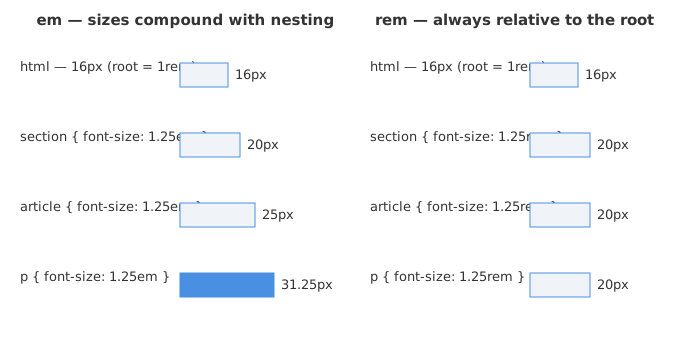
Sounds harmless. Here’s where it gets tricky: if every nested level uses em, the sizes compound.
html    { font-size: 16px; }      /* root = 16px */
section { font-size: 1.25em; }    /* 1.25 × 16px = 20px */
article { font-size: 1.25em; }    /* 1.25 × 20px = 25px  ← compounding! */
p       { font-size: 1.25em; }    /* 1.25 × 25px = 31.25px */
That <p> is now rendering at over 31px, when you probably wanted something close to 20px. Nobody intends this — it just happens because of how nesting works, and it’s the single most common reason people swear off em for font-size entirely.
That said, em isn’t useless — it’s actually great for things that should scale with their own element’s font size, like padding, line-height, or letter-spacing on a button. If the button text gets bigger, you probably want the padding to grow proportionally too. Just don’t chain em-based font sizes through five levels of nesting and expect sanity.
rem — relative to the root, and the closest thing to a default recommendation
rem stands for “root em.” It’s always relative to the font-size of the <html> element, no matter how deeply nested the element is [3]. Rewriting that earlier example:
html    { font-size: 16px; }    /* 1rem = 16px, always */
section { font-size: 1.25rem; } /* 20px */
article { font-size: 1.25rem; } /* 20px — no compounding */
p       { font-size: 1.25rem; } /* 20px */
Every 1.25rem means 20px, no matter where it sits in the DOM. This predictability is exactly why rem has become the de-facto recommendation for font sizes, spacing, and most layout dimensions [4].
But the real reason rem matters goes beyond predictability — it’s about respecting the user. If someone sets their browser’s default font size to 20px instead of 16px, every rem-based value on your site scales proportionally, automatically, with zero extra code [5]. With px, that user’s preference is just… ignored.
Percentages — em’s quieter cousin
font-size: 80% works almost identically to em — it’s relative to the parent’s computed font-size, and it compounds the same way through nested elements [3]. You’ll see it most often on html { font-size: 62.5%; } tricks (to make 1rem = 10px for easier mental math), or in older stylesheets that predate rem having solid browser support.
smaller and larger — the forgotten relative keywords
Already mentioned above, but worth repeating here: smaller and larger are relative-size keywords that nudge the font size up or down from the parent’s computed size, by roughly 1.2×–1.5× depending on context [2]. Useful occasionally for <small> or <sup>-style elements, but rare in modern component-based CSS where you’d more likely use a design token.
Viewport units — sizing text off the screen itself
vw (viewport width), vh (viewport height), vmin, and vmax size things relative to the browser’s viewport dimensions. 1vw = 1% of the viewport’s width. So:
h1 { font-size: 5vw; }
On a 1000px-wide viewport, that’s a 50px heading. On a 1920px viewport, it’s 96px. It scales continuously with screen size — no breakpoints needed.
Sounds great, right? Here’s the catch: viewport units alone are dangerous for font-size. On a tiny phone screen, 5vw might shrink your body text down to something unreadable. On an ultrawide monitor, it might balloon a paragraph into 80px text. And there’s a sneakier issue — text sized purely in vw doesn’t respond properly to a user’s font-size zoom preference on some setups, because the viewport dimensions don’t change when text-only zoom is applied [6].
So viewport units on their own are basically never the right call for body text. They’re a building block for the next thing.
clamp() — the function that actually makes viewport units usable
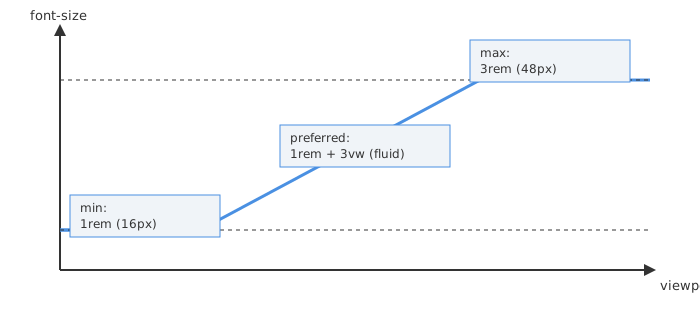
clamp(min, preferred, max) is, hands down, the unit/function combo I reach for most now on any new project. It takes three values — a minimum, a preferred (often viewport-based) value, and a maximum — and picks whichever keeps you between the floor and ceiling [7].
h1 {
  font-size: clamp(2rem, 1.5rem + 3vw, 4rem);
}
Read that as: “Never go below 2rem (32px). Never go above 4rem (64px). In between, scale fluidly based on the viewport width.” One line replaces what used to take four or five media queries [8].
A few practical notes I’ve picked up using clamp() across projects:
- Combine
remfor the min/max withvwfor the preferred value. This keeps your floor and ceiling tied to the user’s font-size preference while letting the middle scale fluidly [8]. clamp()is a tool, not a magic fix — if your minimum is too small, low-vision users still can’t read it, and if your maximum is too small, it doesn’t help users who zoom in for a reason [7].- There’s also
min()andmax()individually, for when you only care about one bound.font-size: min(8vw, 3rem)caps a heading at 3rem but lets it shrink on small screens.
ch, ex, and the units that care about the text itself
Two oddballs worth knowing:
chis based on the width of the “0” character in the current font. It’s not really used for font-size, but it’s the perfect companion to it —max-width: 66chkeeps a paragraph at roughly 50–75 characters per line, which is the widely cited sweet spot for readability [9].exis based on the x-height of the font (roughly the height of a lowercase “x”). It’s rarely supported consistently enough to rely on, but you’ll occasionally see it in typography-heavy designs.
article p {
  font-size: clamp(1rem, 0.95rem + 0.3vw, 1.125rem);
  line-height: 1.6;
  max-width: 66ch;
}
That combo — fluid font size, generous line-height, and a ch-based max-width — is basically my go-to for any long-form text block now. Line-height around 1.5–1.6 is the commonly recommended baseline, going higher (1.6–1.7) for lines over 75 characters [9].
Container query units — sizing based on the component’s box, not the screen
This one’s newer, and I’ll admit I only started using it in the last year or so. Container query units (cqw, cqh, cqi, cqb, cqmin, cqmax) work exactly like viewport units, except they’re relative to a containing element you’ve opted into, instead of the whole browser viewport [10].
.card {
  container-type: inline-size;
}

.card h2 {
  font-size: clamp(1rem, 4cqi, 1.5rem);
}
Why does this matter? Because the same <h2> might live inside a full-width hero section or a narrow sidebar widget. Viewport units can’t tell the difference — they only know about the browser window. Container query units let that heading size itself based on the actual space it has, which is huge for component-driven design systems [11].
cqw= 1% of the query container’s widthcqi= 1% of the container’s inline size (writing-mode aware — generally the one to prefer overcqw) [10]cqb= 1% of the block sizecqmin/cqmax= the smaller/larger of the inline and block sizes
As with viewport units, wrap these in clamp() so a component squeezed into a tiny sidebar doesn’t end up with 4px text [10]. Browser support is solid in evergreen browsers via the CSS containment spec, but I’d still test on whatever your analytics say your users are actually running.
The rem-vs-px fight — my actual take
I’ve read a lot of opinions on this, and here’s where I’ve landed.
Browser zoom and the “default font size” setting are two different things, and people conflate them constantly [6]:
| Mechanism | What it does | Effect on px | Effect on rem |
|---|---|---|---|
| Browser zoom (Ctrl/Cmd + / -) | Scales the entire page proportionally — layout, images, everything | Scales up equally | Scales up equally |
| “Default font size” preference | Changes what 1rem (and the medium keyword) resolves to | No effect | Scales proportionally |
So if a user zooms the whole page to 150%, a 16px element and a 1rem element both end up 50% bigger — no difference there [6]. But if a user goes into their browser settings and changes the default font size from 16px to 24px (a setting many low-vision users rely on permanently, without zooming anything), rem-based sizes scale with that change and px-based sizes don’t move at all [4][5].
That’s the whole argument, really. It’s not that px is “wrong” — it’s that px silently opts your text out of one specific accessibility preference, and most developers have no idea that preference exists because they’ve never needed to use it.
My practical rule, which lines up with what most of the accessibility-focused writers I trust land on:
- Use
remfor font sizes, padding, margins, and anything text-related — it respects user preferences [4][5]. - Use
pxfor things that should stay visually crisp regardless of text scaling — 1px borders, box-shadow offsets, outline widths. A 1px border that suddenly becomes 1.5px because someone bumped their font size would just look broken. - Set
html { font-size: 100%; }(or don’t touch it at all) rather than hardcodinghtml { font-size: 16px; }— the latter actually overrides the user’s browser default, which defeats the whole point.
The 16px gotcha that has nothing to do with design
Here’s a fun one that bit me on a mobile-first project. We had a slick, compact login form — input fields styled at 14px because the design called for a tight, minimal look. On desktop, perfect. On iPhones, every time someone tapped an input field, Safari would yank the entire page into a zoomed-in view, like it was trying to “help.”
Turns out this is a deliberate iOS Safari accessibility behavior: if an input field’s computed font-size is below 16px, Safari assumes it’s too small to read comfortably while typing and auto-zooms the viewport when that field gets focus [12][13]. It’s been this way for years, and it’s iOS-specific — Android browsers don’t do this [12].
The fix was almost embarrassingly simple:
input, textarea, select {
  font-size: 16px; /* or 1rem, assuming root is 16px */
}
That’s it. Once every form field rendered at 16px or larger, the auto-zoom stopped completely. The catch is that the threshold checks the computed, rendered size — so if you’re applying transform: scale() to a form for some reason, that affects whether the zoom kicks in too [13]. This is one of those things that has nothing to do with your visual design preferences and everything to do with a platform quirk — and it’s exactly the kind of bug that’s invisible until you test on a real device.
Beyond the browser — how other platforms think about this
If you build for more than just web, font-size units look a little different elsewhere, but the underlying tension — fixed vs. user-scalable — is the same everywhere:
- Android has
dp(density-independent pixels) andsp(scale-independent pixels). They’re identical by default, butspscales when the user changes their system font-size preference, anddpdoesn’t [14][15]. Android’s own accessibility guidance is blunt about it: text sizes should be insp, full stop, or the system-wide “make text bigger” setting silently does nothing for your screens [14]. - iOS leans on Dynamic Type, where text styles (like
.bodyor.headline) are semantic categories that scale together based on the user’s chosen text size — closer in spirit to usingremwith semantic class names than to hardcoded points. - Design systems and frameworks generally bake
remin as the default. Tailwind CSS, for example, ships its entire type scale inrem, withtext-basemapping tofont-size: 1rem; line-height: 1.5rem, which works out to 16px/24px at the default root size [16]. If you’ve ever wondered why Tailwind’s spacing numbers look like fractions of 16, that’s why.
The pattern across every platform is the same: there’s an absolute unit (px, dp, pt) and a scalable unit (rem, sp, Dynamic Type), and the scalable one is the one that respects what the user asked for.
What I actually do now
After going back and forth on this across a few projects, here’s the setup I default to:
- Leave the root font-size alone (
100%/ browser default), don’t hardcode it to16px. - Base font sizes and spacing tokens in
rem, defined once as CSS custom properties —--font-size-base: 1rem; --font-size-lg: 1.25rem;— so the whole scale is adjustable from one place. - For hero headings and anything that needs to scale across a huge range of screen sizes, reach for
clamp()withrembounds and avw-based middle. - For components that get reused in wildly different layout contexts (cards, sidebars, widgets), use container query units (
cqi) wrapped inclamp(). - Pair body text with
max-width: 66chandline-height: 1.5–1.6for readability. - Keep all form inputs at
1rem/16pxminimum, no exceptions — that one line has saved me from the iOS zoom bug more than once. - Reserve raw
pxfor borders, shadows, and other purely decorative details that shouldn’t move when text scales.
That’s a lot of units for something that used to be “just pick a number.” But once you’ve seen a site become unusable for someone who simply changed a browser setting most developers don’t even know exists, “just pick a number” stops feeling like enough.
Sources
- font-size - CSS: Cascading Style Sheets | MDN
CSS type - MDN Web Docs - CSS Units Guide - rem, em, px, vh, vw Explained | Saeloun Blog
- REM? PX? Why not both?
- Accessibility: px or rem?
- Totally remdom, or How browsers zoom text - Manuel Matuzovic
- Linearly Scale font-size with CSS clamp() Based on the Viewport | CSS-Tricks
- Modern Fluid Typography Using CSS Clamp — Smashing Magazine
- Optimal Line Length for Readability: The 50–75 Character Rule Explained | UXPin
- CSS Container Query Units
- CSS container queries - MDN Web Docs
- 16px or Larger Text Prevents iOS Form Zoom | CSS-Tricks
- Defensive CSS - Input zoom on iOS Safari
- Text scaling - Android Accessibility Help
- dp and sp in Android UI Design
- Font Size - Tailwind CSS