
Open DevTools, click on Application, and look at the left sidebar. Cookies, Local Storage, Session Storage, IndexedDB, Cache Storage, Shared Storage, Background Services… it’s a lot. I’ve seen senior developers reach for localStorage for everything — auth tokens, shopping carts, even megabytes of API responses — simply because it’s the one they know. That’s not always wrong, but it’s rarely the best choice. Let’s actually go through what each of these mechanisms does, where you’d find it in DevTools, and — more importantly — when you should reach for it instead of the other six options sitting right next to it.
Why the Application panel even matters
Before browsers had a unified storage inspector, debugging “why isn’t my data persisting” usually meant console.log-ing your way through guesswork. The Application panel in Chrome DevTools changed that — it gives you a single place to view, edit, and manually delete cookies, local storage, session storage, IndexedDB databases, cache storage entries, service workers, and even newer Privacy Sandbox features like Shared Storage and Interest Groups [1].
That matters because every one of these storage types behaves differently — different size limits, different lifetimes, different sync/async behaviour, different visibility to the server. Picking the wrong one isn’t just a style choice; it can blow up your app’s performance, leak data across tabs, or quietly get wiped by the browser without you ever knowing why. Let’s get into it.
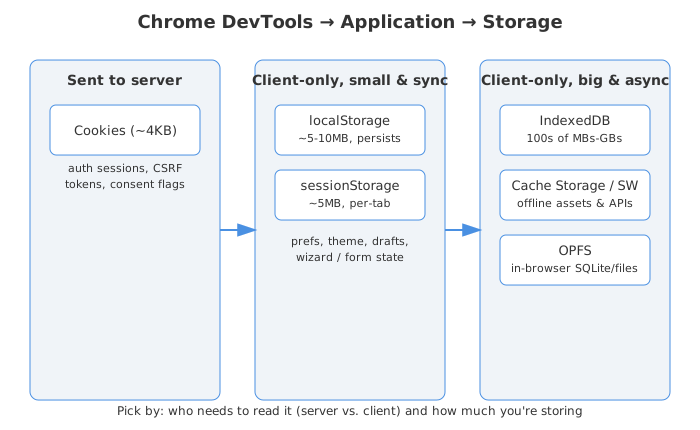
The lay of the land — quick comparison
Before going deep into each one, here’s the cheat sheet I wish someone had handed me years ago:
| Mechanism | Capacity (rough) | Survives tab close? | Sent to server? | Sync or async? | Best for |
|---|---|---|---|---|---|
| Cookies | ~4KB per cookie | Depends on expires | Yes, automatically | Sync (document.cookie) | Auth/session tokens, server-read flags |
| sessionStorage | ~5MB | No (per tab) | No | Sync | Wizard/form state, one-off page data |
| localStorage | ~5–10MB | Yes | No | Sync (blocking) | User prefs, small caches, feature flags |
| IndexedDB | 100s of MB–GBs | Yes | No | Async | Offline data, large structured records |
| Cache Storage (Service Worker) | Shares origin quota | Yes | No | Async | Cached network requests, offline assets |
| OPFS (Origin Private File System) | Shares origin quota | Yes | No | Async/sync (in workers) | In-browser databases, file-heavy apps |
| Shared Storage | Small, write-only reads | Yes | No (cross-site, privacy-preserving) | Async | Privacy-safe cross-site measurement |
Capacities and behaviours come straight from the comparison data Chrome and MDN publish, and they roughly match what I see poking around in DevTools myself — Session/Local Storage hover around 5MB per origin, cookies are capped near 4KB, and IndexedDB can balloon into hundreds of megabytes or more depending on disk space [2].
Now let’s actually walk through each one — what it’s for, and a real scenario where I’d pick it.
localStorage — the easy drawer everyone over-stuffs
localStorage is a synchronous key-value store, scoped to the origin, that survives browser restarts. You’ll find it under Application → Storage → Local Storage → (origin), where DevTools lets you add, edit, and delete entries directly in a table [1].
What it’s genuinely good for:
- User preferences — theme (dark/light), language, layout density
- Small feature flags or “don’t show this tooltip again” markers
- Lightweight caching of small, infrequently-changing API responses (think: a list of country codes, not a user’s entire order history)
Where I’ve seen it go wrong: people store JWTs in localStorage for “convenience,” not realizing that any script running on the page — including a third-party script pulled in via a compromised npm package or an XSS hole — can read it. Cookies with HttpOnly at least put a wall between your token and arbitrary JavaScript. If you must store a token client-side and can’t use cookies, at least understand you’re trading XSS-resistance for convenience.
The other gotcha: localStorage is synchronous and blocks the main thread. Write a few hundred KB of JSON into it on every keystroke of a text editor, and you’ll feel your UI stutter. I’ve actually watched a “simple” autosave feature tank input responsiveness because someone was doing localStorage.setItem(JSON.stringify(hugeObject)) on every oninput event. That’s exactly the kind of “it works on my machine” bug the Application panel helps you catch — open the Storage tab, watch the size grow in real time, and you’ll spot the problem before your users do.
IndexedDB — when you actually need a database in the browser
This is where things get more interesting — and, honestly, this is where it gets trickier too. IndexedDB is a full transactional, asynchronous, NoSQL-ish database built into the browser, capable of storing structured data, blobs, and files, with support for indexes and range queries [2][5]. In DevTools it lives under Application → Storage → IndexedDB, where you can drill into individual databases, object stores, and even individual records [1].
Real-world use cases I’d actually reach for it:
- Offline-first apps — note-taking apps, to-do apps, email clients that need to work on a flaky connection
- Caching large API response sets — think a project management tool caching thousands of tasks so the UI feels instant
- Storing files/blobs client-side — image editors, PDF viewers, anything dealing with binary data that’s too big for
localStorage’s string-only, ~5MB world
The trade-off is that IndexedDB’s API is famously clunky — raw IndexedDB code is full of nested callbacks and onsuccess/onerror handlers that read like something from 2010 (because, well, it kind of is). Most teams wrap it with a library like Dexie.js or idb to make it bearable. If you’re debugging it, the Application panel’s IndexedDB viewer is genuinely one of the more pleasant parts of DevTools — you can expand object stores, inspect records, and even delete a database entirely without writing a line of code.
One bit of history that explains why IndexedDB won: Chrome used to also support Web SQL Database, a SQLite-backed relational API. It was deprecated and fully removed from Chromium 119 onward because it was never standardized — only Chromium ever fully implemented its spec [6]. The official guidance now is to use the Web Storage APIs or IndexedDB for most cases, and for apps with serious relational/performance needs, to use SQLite compiled to WebAssembly running on top of the Origin Private File System [6] — which conveniently brings us to our next section.
Cache Storage and Service Workers — building things that work offline
This is the pairing that powers Progressive Web Apps. A service worker is a script that sits between your page and the network, intercepting requests, and the Cache API / Cache Storage is where it stashes the actual response objects [7][8]. In DevTools:
- Application → Application → Service Workers shows registration status, scope, and lets you trigger updates, force activation, or simulate going offline [9]
- Application → Storage → Cache Storage is a read-only browsable list of everything cached via the Cache API — you can inspect, filter by URL, and delete individual entries [1][7]
Real-world use case: a news site that wants articles to be readable on the subway with no signal. The service worker intercepts navigation requests, checks Cache Storage first, and falls back to the network only when needed. Or think of Twitter/X’s “you’re offline” screen that still shows your last-loaded timeline — that’s Cache Storage doing its job.
The key conceptual thing to understand — and I genuinely didn’t get this clearly until I’d debugged it the hard way — is that the Cache API is a completely separate mechanism from the regular HTTP cache. The HTTP cache is governed by response headers and browser heuristics; the Cache Storage API is entirely code-driven — you decide what gets cached, when, and for how long [8][7]. That’s powerful, but it also means you are responsible for invalidating stale entries; the browser won’t do it for you based on Cache-Control headers the way it does for the HTTP cache.
A debugging tip that saved me a frustrating afternoon: unregistering a service worker does not clear its caches. They’re independent. If your “fix” isn’t showing up after you killed the service worker, check Cache Storage separately — or just hit the big red Clear storage button under Application → Storage, which unregisters service workers and wipes all associated storage in one click [9][10]. That single button has saved me more “why is my old code still running” headaches than I’d like to admit.
Extension Storage — debugging chrome.storage from DevTools
If you build or debug Chrome extensions, this one’s a hidden gem. Under Application → Storage → Extension Storage, DevTools lists every installed extension alongside its chrome.storage.local and chrome.storage.sync data as inspectable, editable key-value pairs [17].
The two storage areas behave very differently. chrome.storage.local stores data on the current machine — fast, no size limit beyond the overall extension quota. chrome.storage.sync writes data that Chrome silently syncs across every device where the user is signed in [18]. From a user’s perspective that sounds magical. From a debugging perspective it means a value you cleared on your dev machine might reappear seconds later because Chrome synced it back from another device — a genuinely confusing situation if you don’t know to look here.
What makes the DevTools panel actually useful: you can click into any key, edit the value live, and immediately test how your extension responds to different stored states — without needing to write a content script or open the extension’s background page. It also auto-refreshes, so you can watch chrome.storage.onChanged events land in real time as your extension writes new values.
Storage Buckets — telling the browser what to throw away first
The Storage Buckets API is Chromium’s answer to a very real production problem: storage pressure eviction is all-or-nothing by origin. If the browser decides it needs space, it clears your entire origin’s best-effort storage, regardless of whether it’s throwing away a 200 KB user preference file or a 50 MB document the user spent an hour editing [14].
Storage Buckets fix this by letting you partition storage into named buckets with independent quota limits, eviction priority, and persistence flags [14]. The mental model:
const criticalBucket = await navigator.storageBuckets.open("user-docs", {
  durability: "strict",
  persisted: true,
});
const cacheBucket = await navigator.storageBuckets.open("temp-cache", {
  durability: "relaxed",
  persisted: false,
});
The user-docs bucket is marked strict + persisted: true — the browser won’t touch it under pressure. temp-cache is relaxed + persisted: false — fair game for eviction. Each bucket gets its own IndexedDB, Cache Storage, and file handles, completely isolated from the default bucket [14].
In Application → Storage → Storage Buckets you can inspect each named bucket, see what’s inside it (which IndexedDB databases, which cache entries live in it), and verify that your persistence settings are what you think they are before you assume critical data is safe.
Private State Tokens — anti-fraud without the surveillance
Private State Tokens (previously called Trust Tokens) are a Privacy Sandbox API designed to let an issuer — say, a site that already knows you’re a real human — vouch for you on a different site, without linking your identities or enabling cross-site tracking [19].
The basic flow: a trusted issuer (perhaps your bank, a CAPTCHA provider, or Google itself) issues you cryptographically signed tokens stored by the browser. When you visit a third-party site that partners with that issuer, the site can redeem one token as a signal that the browser trusts you’re a real person — without learning who you are or where you came from [19]. The token proves authenticity, not identity.
In Application → Storage → Private State Tokens, DevTools shows you which issuers have stored tokens in the current browser profile and how many tokens remain for each issuer. Tokens are issued in batches and are single-use on redemption, so a depleted count doesn’t necessarily mean something went wrong — it means the site successfully used them. The Network panel also logs individual issuance and redemption requests so you can trace the full flow [19].
As a developer you’re likely to encounter these if you’re integrating an anti-fraud or bot-detection service that has moved off third-party cookies, or if you’re building a Chrome extension that works with issuers like Google’s reCAPTCHA v4.
Interest Groups — how the browser runs its own ad auction
This one is the deepest Privacy Sandbox concept in the Application panel, and it only makes sense if you understand what problem it’s solving. Currently, when you visit a product page, the retailer drops a third-party cookie so that ad networks can follow you around the web and retarget you. That model is being killed by third-party cookie deprecation.
Interest Groups (part of the Protected Audience API, formerly FLEDGE) replace it: instead of the ad network tracking you externally, the browser itself joins you to interest groups locally and runs the bidding auction on-device [20]. Your browsing history never leaves your machine. The advertiser knows the ad was served to “someone who visited running shoes pages” — but they don’t know who or when, and they can’t link it to you across other sites.
In Application → Storage → Interest Groups, DevTools shows you every interest group the current page has asked your browser to join, including the owner, the bidding logic URL, and the list of ads associated with that group [20]. The event timeline at the top logs joined, bid, win, and leave events, which is indispensable when you’re debugging why a Protected Audience auction isn’t serving the expected creative.
A practical note: if you open the Application panel after loading a page, you won’t see the join events because they already fired. Refresh the page with DevTools already open to capture the full sequence [20].
Quotas, eviction, and why your data sometimes just… vanishes
Ever had a user report “my data disappeared” and had no idea why? This is usually the answer: storage isn’t infinite, and the browser will evict data it decides it doesn’t need.
Chromium-based browsers generally cap an origin’s storage at a percentage of total disk space — and the specific ceiling depends on whether the origin has been granted “persistent” storage or is operating in “best-effort” mode [15]. In best-effort mode, when the browser comes under storage pressure, it starts evicting the least recently used origins first — and it skips any origin that’s called navigator.storage.persist() and been granted persistence [15].
You can check exactly where your app stands using the navigator.storage.estimate() API, which returns both your current usage and your quota — both of which fluctuate based on how much free disk space the device actually has [16]. And in DevTools, the Application → Storage overview literally draws you a pie chart of how your origin’s quota is divided across cookies, IndexedDB, cache storage, and so on [1] — plus a slider to simulate a smaller quota, which is brilliant for testing how your app behaves when storage gets tight before a real user ever hits that wall.
Practical debugging checklist I run through whenever storage behaves weirdly:
- Open Application → Storage and look at the usage pie chart — is one storage type unexpectedly huge?
- Check whether the origin has been granted persistence (
navigator.storage.persisted()) — if not, eviction under pressure is fair game - Use the quota override slider to simulate low-storage conditions and watch what breaks
- Hit Clear storage to get a clean slate, then reproduce the issue from scratch
- For service-worker issues specifically, check Cache Storage and Service Workers separately — clearing one doesn’t clear the other [9]
So which one do I actually pick?
Here’s the decision framework I actually use when starting a new feature that needs to remember something on the client:
- Does the server need to read this on every request? → Cookie. Nothing else gets sent automatically [2].
- Is it small (a few KB), simple key-value, and should outlive the tab? →
localStorage. - Is it small, simple, and should die when the tab closes? →
sessionStorage. - Is it structured, large, binary, or does it need querying/indexing? → IndexedDB (probably wrapped in Dexie or
idb). - Are you caching network responses for offline use? → Cache Storage, driven by a service worker.
- Do you need a real file system or an in-browser SQL database? → OPFS, likely paired with SQLite-WASM [6][11].
- Are you trying to do cross-site measurement without violating user privacy? → Shared Storage [13].
- Do you have critical data that must survive storage eviction? → Storage Buckets with
persisted: true[14]. - Building or debugging a Chrome extension? → Extension Storage (
chrome.storage.local/chrome.storage.sync) [17][18]. - Doing ad-tech work with the Privacy Sandbox? → Private State Tokens (anti-fraud signals) and Interest Groups (on-device ad auctions) [19][20].
| Scenario | Pick this | Why |
|---|---|---|
| “Remember me” login session | Cookie (HttpOnly, Secure, SameSite) | Server needs it, and JS shouldn’t be able to read it |
| Dark mode toggle | localStorage | Small, simple, should persist across visits |
| Multi-step signup form | sessionStorage | Should vanish if abandoned in this tab |
| Offline-capable to-do app | IndexedDB + Cache Storage | Structured data + cached app shell |
| News site readable on the subway | Service Worker + Cache Storage | Pre-cache articles, serve from cache when offline |
| In-browser spreadsheet/SQL tool | OPFS + SQLite-WASM | Needs real file I/O and relational queries |
| Privacy-safe ad reach measurement | Shared Storage | Cross-site insight without exposing raw identifiers |
| Critical data that can’t be evicted | Storage Buckets (persisted: true) | Survives storage pressure; disposable data evicted first |
| Extension prefs synced across devices | chrome.storage.sync | Chrome syncs it automatically; inspect in Extension Storage |
| Bot/fraud detection without cookies | Private State Tokens | Browser-issued anti-fraud signals, privacy-preserving |
| Interest-based ads without tracking | Interest Groups (Protected Audience) | On-device auction; browsing history never leaves the browser |
None of these are mutually exclusive, by the way — most serious web apps use several of these together. A PWA might use cookies for auth, localStorage for theme prefs, IndexedDB for offline content, and Cache Storage for the app shell, all at once. The Application panel is exactly the tool that lets you see all of that working (or not working) side by side, in one place, without writing a single debug console.log.
Next time something “just isn’t saving,” skip the guesswork — open DevTools, click Application, and actually look. Nine times out of ten, the answer is sitting right there in plain sight.
Sources
- Application panel overview | Chrome DevTools | Chrome for Developers
- Browser Storage Explained: LocalStorage vs SessionStorage vs IndexedDB vs Cookies - DEV Community
- Third-Party Cookie Deprecation Testing and Debugging - Chromium
- Third-Party Cookie Deprecation: The 2026 Guide | Ethyca
- 9 differences between IndexedDB and LocalStorage - DEV Community
- Deprecating and removing Web SQL | Blog | Chrome for Developers
- CacheStorage - Web APIs | MDN
- Service workers and the Cache Storage API | Articles | web.dev
- Debug Progressive Web Apps | Chrome DevTools | Chrome for Developers
- Tips and Tricks for Debugging Service Workers
- The origin private file system | Articles | web.dev
- OPFS Explorer - Chrome DevTools extension - GitHub
- Shared Storage overview | Privacy Sandbox | Chrome for Developers
- Not all storage is created equal: introducing Storage Buckets | Blog | Chrome for Developers
- Storage quotas and eviction criteria - Web APIs | MDN
- Estimating Available Storage Space | Blog | Chrome for Developers
- View and edit extension storage | Chrome DevTools | Chrome for Developers
- chrome.storage API Reference | Chrome for Developers
- Private State Tokens | Privacy Sandbox | Chrome for Developers
- Protected Audience API overview | Privacy Sandbox | Chrome for Developers