Open the Performance panel in Chrome DevTools for the first time and it looks like someone spilled a box of crayons across your screen. Dozens of colored bars, half a dozen tracks, three tabs at the bottom that all seem to show the same thing but slightly differently. No wonder most devs record one trace, get scared, and go back to console.log debugging. I did exactly that for years - until I actually sat down and learned what each piece means, and now it’s the first tool I reach for when something “feels slow.”
Why this panel is worth the learning curve
Lighthouse gives you a score. The Performance panel gives you the why. It records a complete timeline of everything the browser does while your page runs - every JavaScript function call, every layout recalculation, every paint, every network request - and lets you scrub through it frame by frame [1].
Think of it like the difference between a thermometer and a CT scan. A thermometer (Lighthouse, PageSpeed Insights, your Core Web Vitals dashboard) tells you something is wrong. The Performance panel tells you exactly which organ is causing the problem, and at what minute it started acting up.
When you open the panel now, you’re greeted with a Live Metrics screen showing real-time Core Web Vitals - LCP, CLS, and INP - that update as you click around the page [3]. That’s new-ish, and it’s genuinely useful because you don’t even need to record a trace to get a first read on whether something’s broken.
Recording your first trace: runtime vs. reload
There are two fundamentally different things you might want to measure, and DevTools gives you a button for each:
- Record (the circle button) - captures activity while you interact with a live page. Use this for scrolling, typing, clicking buttons, opening modals - basically anything that happens after the page has already loaded.
- Record and reload - captures the entire page load, from navigation to “fully loaded.” DevTools first navigates to
about:blankto clear out leftover screenshots and traces, then reloads your page and automatically stops recording a couple of seconds after load finishes [3].
Before you hit record, click the gear icon to open capture settings. This is where most of the useful knobs live:
- Screenshots - captures a film strip so you can visually see what the user saw at each point in time
- Force garbage collection - triggers a GC run before recording starts, useful when you’re chasing memory-related jank
- CPU and network throttling - more on this below
- JavaScript samples - keeps detailed call stacks visible (this is on by default, and turning it off makes the flame chart far less useful, so don’t touch it unless you have a reason)
- CSS selector stats - shows which selectors are expensive during style recalculation
- Advanced paint instrumentation - exposes detailed paint operation data [2]
I’d recommend recording a short trace first - even just 3-5 seconds of an interaction. Long recordings are harder to navigate and DevTools can get sluggish processing them. Smaller, focused recordings are easier to read and faster to analyze.
Reading the flame chart: the main thread, decoded
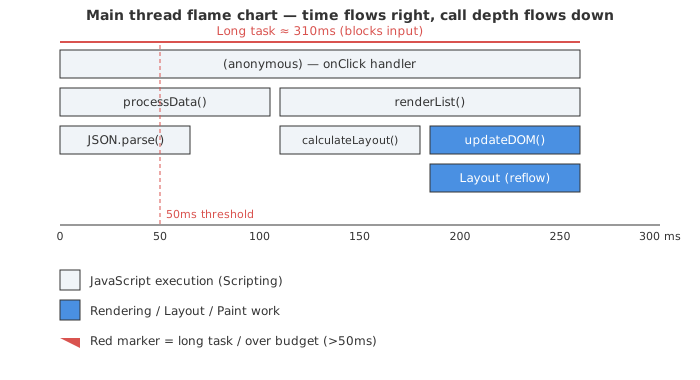
This is the part that scares people off, so let’s slow down. The flame chart sits in the Main track and visualizes everything happening on the main thread over time [1].
- The X-axis is time. Left to right, just like a normal timeline.
- The Y-axis is call stack depth. A function at the top calls a function below it, which calls another function below that. Note that this is “inverted” compared to a traditional flame graph - in DevTools, parents sit above their children, not below [6].
- Each bar is a function call (or browser event). A wider bar means it took longer to execute.
- Colors map to categories - yellows for scripting (your JS), purples for rendering (style/layout), greens for painting, and grey for “other”/idle activity.
Here’s the diagram that finally made it click for me:
Two terms you’ll see constantly once you start clicking on bars:
- Self time - how long the function itself ran, excluding anything it called.
- Total time - self time plus everything its children did.
A wide processData() bar doesn’t automatically mean processData() is the problem. It might just be a thin wrapper around JSON.parse(), which is doing all the actual work. Self time tells you who’s actually guilty; total time tells you who’s standing closest to the crime scene [6].
Call Tree, Bottom-Up, Event Log: same data, three different lenses
Once you click on a bar in the flame chart, the bottom half of the panel switches to show you details. There are three tabs down there, and honestly, figuring out when to use which one took me embarrassingly long.
| View | What it shows | Best for |
|---|---|---|
| Call Tree | Top-down view starting from root activities, expandable into their children | Following the program’s flow - “what triggered what” |
| Bottom-Up | Inverted view, starting from the functions where time was actually spent, aggregated across the whole recording | Finding your single biggest offender across the entire trace |
| Event Log | Chronological list of every event, timestamped, with filters for category and duration | Finding when something happened, especially network requests and user interactions |
The Call Tree answers “how did we get here?” - it shows root activities and lets you drill down into which function caused the most work [1]. The Bottom-Up tab flips that around: it aggregates the Self Time of every function across all its occurrences, so the function eating the most CPU bubbles straight to the top regardless of where it was called from [2]. If you only ever learn one tab, learn this one - it’s the fastest route to “okay, this function is the problem.”
The Event Log is less about CPU time and more about sequence - it’s where I go when I need to know exactly when a network request fired relative to a layout shift, with filtering by Loading, Scripting, Rendering, or Painting categories [2].
Both Call Tree and Bottom-Up support regex search, case-sensitive matching, and “group by” options (by URL, by category, by the activity itself), which becomes essential once your trace has thousands of entries [2].
The 50-millisecond rule: hunting down long tasks
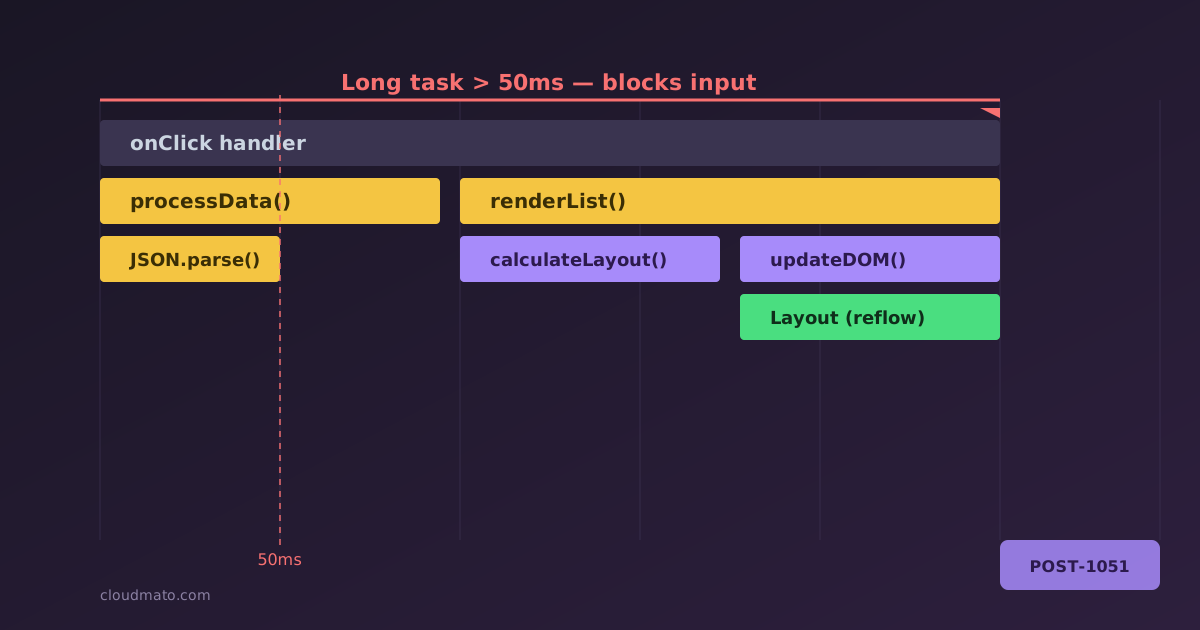
Here’s the single most important number in this whole article: 50 milliseconds. Any uninterrupted chunk of work on the main thread that runs longer than that is officially a “long task,” and DevTools flags it with a red triangle in the corner of the bar, with the portion over 50ms shaded in red [5].
Why does this matter so much? Because the main thread can only do one thing at a time. While it’s busy running your 380ms onClick handler, it cannot respond to a tap, a scroll, or a key press. The user’s input just sits in a queue. This is directly why your Interaction to Next Paint (INP) score tanks - and INP is one of Google’s three Core Web Vitals.
My workflow for hunting these down:
- Record the interaction that feels janky.
- Scan the Main track for bars with the red triangle.
- Click the widest one.
- Switch to Bottom-Up, sort by Self Time, and see which function is hogging the thread.
- Go fix that function.
A great real-world example comes from a developer who traced a search results page and found that every API response triggered a Redux dispatch, which re-rendered the entire component tree. The long task cost for a single handler dropped from 400ms to 70ms after switching to list virtualization - and their p75 First Input Delay went from 140ms down to 25-30ms, with mobile devices seeing an 85% improvement [7]. Another case study showed a product filter going from 118ms to 22ms of blocking time, just by debouncing input and batching DOM updates [6]. These aren’t hypothetical numbers - this is what the panel is for.
So how do you actually fix a long task once you’ve found it? A few proven techniques:
- Break the work into chunks using
setTimeout()to push each chunk into its own task - the original, hacky-but-functional approach [5]. - Use
scheduler.yield()- the modern, purpose-built API.await scheduler.yield()pauses your function, lets the browser handle anything more urgent (like that input event), and then resumes exactly where it left off [5]. - Fall back gracefully for browsers that don’t support it yet:
function yieldToMain() {
  if (globalThis.scheduler?.yield) {
    return scheduler.yield();
  }
  return new Promise(resolve => setTimeout(resolve, 0));
}
- Move work off the main thread entirely with Web Workers when the work doesn’t need DOM access at all.
- Defer or lazy-load non-critical scripts so they don’t compete for the main thread during page load.
Throttling: making your gaming laptop feel like a budget Android phone
Here’s an uncomfortable truth: your dev machine is lying to you. You’re testing on a laptop with eight cores and gigabit fiber. Most of your users are on a mid-range phone with patchy 4G. The Performance panel’s throttling settings exist specifically to close that gap.
| Setting | Options | What it simulates |
|---|---|---|
| CPU throttling | No throttling, 4x slowdown, 6x slowdown, or a calibrated custom preset | Slower processors - “4x” means everything takes 4 times longer to execute [4] |
| Network throttling | Fast 4G, Slow 4G, custom presets | Real-world connection speeds and latency |
| Calibrated CPU throttling | Benchmarks your actual machine and creates a custom preset | A more accurate match for low/mid-tier mobile devices [4] |
Worth being honest about a limitation here: DevTools can’t perfectly emulate a phone’s CPU, because mobile chips have a fundamentally different architecture (different core types, thermal throttling, etc.) than desktop CPUs [4]. The 4x/6x multiplier is a rough approximation, not a phone-in-a-box. The newer calibration feature - which benchmarks your machine and derives a more realistic preset - is a meaningful step toward closing that gap, but I’d still treat throttled results as “directionally correct” rather than “exactly what a Pixel 4a would show.”
That said, even rough throttling is incredibly revealing. I’ve seen interactions that felt instant on my dev machine turn into 600ms-plus freezes the moment I flipped on 6x CPU slowdown. If your team doesn’t have a “test with throttling on” habit, that’s probably the single highest-value change you can make to your testing routine today.
Cutting through the noise: ignore lists and dimming third parties
A real-world trace is busy. Analytics scripts, ad tags, chat widgets, your framework’s internals - they all show up as bars competing for your attention. DevTools gives you a few ways to mute the noise:
- Add scripts to the ignore list - right-click any entry in the flame chart and choose “Add script to ignore list.” That script’s frames collapse into a single entry, and the same ignore list applies when you’re stepping through code in the Sources panel too. The rules persist across DevTools sessions [11].
- “Dim 3rd parties” checkbox - greys out third-party scripts and network requests in the trace so first-party code visually pops [10].
- The Summary tab’s first/third-party table - a newer addition that breaks down time spent by first-party code, third-party code, and browser extensions, with hover-to-highlight in the trace [10].
- Search with Cmd/Ctrl+F - searches activity names across the whole trace, with regex and case-sensitivity toggles [2].
There’s also a navigation change worth knowing about: DevTools now offers “Modern” vs “Classic” scrolling modes. In Classic mode, your scroll wheel zooms and Shift+scroll pans. In Modern mode, it’s the reverse - plain scrolling pans the timeline like you’d expect on any other page, and Shift+scroll zooms [10]. If scrolling in the panel has ever felt backwards to you, that setting is why.
Honestly, this is one of those features I wish I’d known about months earlier - I spent way too long manually scrolling past webpack-bundled vendor code looking for “my” functions before I discovered the ignore list could just collapse all of it.
Annotating, saving, and sharing your findings
Found something interesting? Don’t just screenshot it and paste it into Slack with “look at this 😬” - annotate the trace itself. Since DevTools 131, you can add annotations directly onto a recording [12]:
- Label entries - right-click (or double-click) any bar and add a text note explaining what it is or why it’s slow
- Link entries - draw an arrow between two trace items to show cause-and-effect, like “this network request triggered this re-render”
- Time ranges - shift-click and drag to highlight a whole section, useful for marking “this is the third-party chat widget initializing”
When you’re done, click the download icon in the action bar and choose Save trace. You can optionally include a copy of all script content and source maps from the page - which means whoever opens your trace later gets your actual source code and a working Sources panel, not just minified gibberish [13]. This is genuinely great for getting help: instead of describing a problem in a bug report, you attach a .json trace file and say “open this in DevTools and look at the Main track around the 2-second mark.”
Letting Gemini read the trace with you
The newest layer on top of all this is AI assistance. Chrome’s DevTools now has a “Debug with AI” option (it used to be called “Ask AI”) that appears when you right-click a trace entry, offering context-aware prompts based on whatever you clicked [14].
What’s more interesting is that you’re no longer limited to asking about one isolated bar. After recording a trace, you can chat with Gemini about the entire trace - the timeline, the Insights sidebar’s findings, and even the field data - all in one conversation, before drilling into a specific event [14]. The AI can autonomously pull in relevant context (a specific long task, a render-blocking request) without you manually selecting it first.
I’ll be honest, I was skeptical of “AI but for DevTools” - it sounded like a gimmick bolted onto an already-complex tool. But asking “why is this LCP so slow?” and getting back a plain-English explanation that points at the exact resource and phase responsible is a genuinely faster on-ramp for junior devs (or for me, on a Monday morning before coffee) than manually cross-referencing the LCP breakdown against the network waterfall.
Putting it all together
If you want one workflow to actually remember, here it is:
- Open DevTools, go to Performance, glance at Live Metrics for an obvious red flag.
- Hit Record (or Record and reload) with throttling enabled to match real users.
- Perform the slow interaction, then stop.
- Check the Insights sidebar first - it might just hand you the answer.
- Scan the Main track for red-flagged long tasks.
- Click the widest offending bar, switch to Bottom-Up, sort by Self Time.
- Fix the actual function, re-record, and compare.
Next time someone on your team says “the page just feels slow,” you don’t have to shrug and say “yeah, JS is heavy these days.” You can open a trace, point at a specific 380ms bar, and say exactly whose function that is.
Sources
- Performance panel: Analyze your website’s performance
- Performance features reference | Chrome DevTools
- Analyze runtime performance | Chrome DevTools
- Throttling | Chrome DevTools
- Optimize long tasks | web.dev
- How to Read a Flame Graph in Chrome DevTools
- Profiling & Optimizing the runtime performance with the DevTools Performance tab
- Brand New Performance Features in Chrome DevTools | DebugBear
- Performance insights: Get actionable insights on your website’s performance
- Improved navigation and filtering in the DevTools Performance panel
- Ignore List | Chrome DevTools
- How To Annotate A Chrome DevTools Performance Trace | DebugBear
- Save and share performance traces | Chrome DevTools
- Chat with AI assistance | Chrome DevTools
- Performance monitor panel | Chrome DevTools