
Your app is getting slower over time. Scroll position jumps. Tabs are consuming 800 MB of RAM. You open Task Manager and watch Chrome eat memory like it’s buffet day. Something is leaking — but where? The Chrome DevTools Memory tab is sitting right there, and most developers either ignore it or open it once, get confused by “Shallow Size” and “Retainers,” and quietly close it. This guide is for people who want to actually use it.
Why Memory Leaks Are Sneaky in JavaScript
JavaScript is garbage collected. V8 — Chrome’s JavaScript engine — automatically frees memory once it decides an object is no longer reachable [1]. The algorithm is simple in principle: if nothing holds a reference to an object, it can be collected.
The problem? JavaScript makes it very easy to accidentally keep references alive. An event listener. A closure that captured a variable. A detached DOM node still pointed to by a global array. The garbage collector can’t help you here — the objects are reachable, just not intentionally. Memory management in JavaScript is technically “automatic,” but that doesn’t mean leak-free [1].
Three patterns account for the vast majority of JavaScript memory leaks [2]:
- Forgotten event listeners — you remove an element from the DOM but never called
removeEventListener. The listener (and everything in its closure) stays alive. - Closures holding big objects — a function that closed over a large variable, kept alive because an event or timer still references that function.
- Detached DOM nodes — elements removed from the page but still referenced by a JavaScript object somewhere.
The Memory tab has four distinct tools. Each one is optimized for finding a different kind of problem. Opening the wrong one wastes your time.
The Memory Tab: Four Tools, Not One
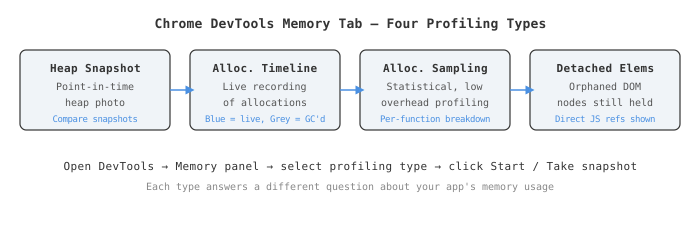
Open DevTools → Memory. You’ll see four radio buttons [3]:
- Heap snapshot — a point-in-time photo of everything on the heap
- Allocation instrumentation on timeline — records allocations as they happen, over time
- Allocation sampling — a lightweight, statistical version of the above
- Detached elements — lists DOM nodes that are orphaned but still referenced
Each one answers a different question. Here’s the quick decision matrix before we go deep:
| Tool | Best for | Overhead | Duration |
|---|---|---|---|
| Heap Snapshot | “What is alive right now?” | High (pauses GC) | Instant |
| Allocations on Timeline | “What got allocated and never freed?” | Medium | Short session |
| Allocation Sampling | “Which functions allocate the most?” | Low | Long sessions |
| Detached Elements | “Which removed DOM nodes are still held?” | Low | Instant |
Heap Snapshot
This is the one most people try first. It captures a complete snapshot of the JavaScript heap at a single point in time — every object, every DOM node, every string, every reference [3].
You take one, look at it, and if you’ve never done this before, you immediately feel overwhelmed by thousands of constructors and numbers. That’s normal. Here’s what to actually look at.
The Views
Switch the dropdown at the top-left of the snapshot result. There are three views [4]:
Summary — default. Lists every constructor function that created objects currently alive on the heap. The columns that matter:
- Shallow size — memory occupied by the object itself, ignoring references
- Retained size — memory that would be freed if this object (and everything it alone keeps alive) was garbage collected [5]
Comparison — take a second snapshot after performing some action, then compare it against the first. Shows # New, # Deleted, # Delta. This is where leaks become obvious. Comparing heap snapshots is the most reliable way to confirm a leak is real [6].
Containment — a bird’s-eye view of the object graph starting from roots like window and closures. Good for when you already suspect a specific object and want to trace exactly what’s keeping it alive [4].
Shallow vs Retained Size — This Part Actually Matters
Honestly, this is the most confusing concept in this whole panel, but once it clicks it’s simple.
Shallow size is just the object itself. A plain JS object {} with a few properties might be 64 bytes shallow. Retained size is everything that would be freed if this object disappeared [5]. If that plain object holds a reference to an Array of 10,000 items, its retained size is 64 bytes + all that array memory.
When hunting leaks, sort by Retained size, not Shallow. An object with 64 bytes shallow but 50 MB retained is exactly what you’re looking for.
The Classic Leak-Hunting Workflow with Heap Snapshots
- Open the Memory tab, select Heap snapshot
- Click Take snapshot — this is your baseline
- Perform the action you suspect leaks (open a modal, navigate a route, click a button repeatedly)
- Do the reverse (close the modal, navigate back)
- Take a second snapshot
- In snapshot 2, change the view to Comparison
- Sort by
# Deltadescending
If objects that should have been collected (the modal’s internal components, the route’s views) still show a positive delta after you reversed the action — you’ve found your leak. The Retainers section at the bottom tells you what’s holding them.
When to use Heap Snapshot: You already know something is leaking and you want to identify exactly what it is. Also good for before/after analysis — e.g., “does this refactor actually reduce memory usage?”
Allocations on Timeline
Heap snapshots show you the state of memory. The Allocation Timeline shows you the story — what got allocated, when, and whether it survived [7].
When you click Record, DevTools periodically takes micro-snapshots (roughly every 50ms) throughout your session. Each allocation appears as a vertical bar [7]:
- Blue bar — objects allocated here are still alive when you stopped recording
- Gray bar — objects allocated here were subsequently garbage collected ✓
The ones you care about are the blue ones that shouldn’t be blue. If you click a button, perform an action, and see a cluster of blue bars that never turns gray no matter how long you wait — those objects are not being freed.
How to Use It
- Select Allocation instrumentation on timeline
- Hit Start
- Perform the suspect action (scroll, click, navigate)
- Stop recording
- Look at the timeline for persistent blue bars
- Click on any bar to filter the Constructor list below it — shows only objects allocated during that window that are still live
The difference from Heap Snapshot is significant. The Timeline tells you when allocations happened, which makes it much easier to connect an allocation to a specific user interaction. You might see a clear spike every time a certain button is clicked — that’s your culprit’s timestamp [8].
When to use Allocations on Timeline: You’re trying to isolate which user interaction is causing growth. You have a general sense that something leaks but you don’t know what action triggers it.
One Gotcha
The overhead here is real. DevTools is effectively snapshotting the heap every 50ms [7]. Don’t record a 10-minute session with this tool — you’ll get a massive profile that’s painful to analyze, and your app will be noticeably slower during recording. Keep recordings short and focused on the specific interaction you’re investigating.
Allocation Sampling
Here’s the one most developers skip, which is a mistake. Allocation Sampling is the lightweight version of the Timeline — it uses statistical sampling instead of recording every allocation [3].
The trade-off: less precise, but almost zero overhead. You can record for minutes or hours without significantly impacting your app’s performance. This matters because some memory growth is gradual — it takes 20 minutes of use before it becomes visible. The Timeline would be unusable for that. Allocation Sampling is designed for it.
What It Shows
The results look like a flame chart / call tree. You get a breakdown of heap memory allocated by each function over the duration of the profile, including allocations that were later freed [3]. The default view is “Heavy (Bottom Up)” — the functions that allocated the most memory are listed at the top.
This answers a different question than the other tools: not “what is leaked” but “which code is allocation-heavy.” A function that allocates 200 MB even if most of it gets collected is still something worth looking at from a performance standpoint.
When to use Allocation Sampling: Long-running profiling sessions where you can’t afford the overhead of the Timeline. When you want to understand which functions are the biggest allocators (not necessarily leaking, just expensive). When you’re doing memory optimization rather than leak hunting.
Detached Elements
This one is more targeted than the others. Rather than showing you the whole heap, it specifically finds DOM nodes that have been removed from the page’s DOM tree but are still referenced by JavaScript [9].
Why does this matter? When you call element.remove() or clear innerHTML, you expect those nodes to be garbage collected. But if any JS variable, array, closure, or event handler still holds a reference to that element, V8 cannot collect it [2]. The node is “detached” — no longer visible in the page, but very much alive in memory.
This is extremely common in single-page applications. Think about a component framework that keeps a cache of previously rendered elements, or a list that stores references to rows you’ve already removed from the viewport.
Common Code That Creates Detached Elements
// Classic detached node scenario
let detachedList = [];

function addAndRemove() {
  const el = document.createElement('div');
  document.body.appendChild(el);
  detachedList.push(el);           // saved the reference
  document.body.removeChild(el);   // removed from DOM
  // el is now detached — detachedList holds it alive
}
The detachedList array keeps every div alive even though they’re all gone from the page [2].
Using the Detached Elements Profiler
- Select Detached elements
- Click Get detached elements (or Take snapshot — the label varies by Chrome version)
- The resulting list shows every orphaned DOM node still referenced by your JavaScript [9]
- Each entry is expandable — you can see parent/child nodes that are also being retained
- Click the “Analyze” button to see which JS objects hold references to them
The “Retainers” panel at the bottom is key. It shows you the exact variable or closure that’s keeping the node alive. That’s where you go to write the fix [10].
When to use Detached Elements: Any time you suspect DOM nodes aren’t being cleaned up. Especially useful in SPAs with dynamic rendering, virtual lists, or modals that are shown/hidden rather than created/destroyed. Also run it after a major refactor to confirm cleanup logic is working [9].
Note — detached elements aren’t always a leak. A framework might legitimately cache a few nodes for performance reasons. Context matters. But if you have hundreds of detached elements growing over time, that’s a problem [9].
Putting It Together: A Real Debugging Session
You notice your SPA’s memory climbs from 50 MB to 400 MB after a few minutes of use. Here’s how I’d approach it:
Start with Heap Snapshot comparison. Take a baseline snapshot, use the app for 2 minutes, take another. Switch to Comparison view, sort by delta. If you see a clear class or constructor type growing — you know what to investigate.
If the snapshot shows DOM nodes growing, switch to Detached Elements and snapshot. This confirms whether removed elements are piling up.
If you need to identify the trigger, use Allocations on Timeline for a focused 30-second recording. Perform one specific interaction and watch for blue bars that don’t turn gray.
If you need to profile a longer session (say, a background polling loop running for several minutes), use Allocation Sampling. Let it run, stop it, and see which functions are the biggest allocators.
Don’t try to use all four simultaneously. Pick the one that answers your immediate question, act on what you find, then re-profile.
A Few Things Worth Knowing
Force garbage collection first. Before taking a snapshot for comparison, click the trash-can icon (“Collect garbage”) in the Memory tab. This runs GC manually so you’re not comparing snapshots that differ only because GC hasn’t run yet [3].
The Distance column in Heap Snapshot shows the number of hops from the GC root to the object. Objects with a very small Distance (like 2 or 3) are directly reachable from global scope — often signs of globals you forgot to clean up.
(string) and (array) constructors often dominate Summary view. This is usually normal. Don’t panic about them unless their retained size is growing between snapshots.
Retainer chains can be long. Sometimes you’ll chase a chain of 6–7 objects before reaching the actual variable that’s keeping something alive. That’s just how reference graphs work. Follow it.
End
Sources
- Memory management — MDN Web Docs
- Causes of Memory Leaks in JavaScript and How to Avoid Them
- Memory panel overview — Chrome DevTools
- Record heap snapshots — Chrome DevTools
- The difference between Shallow Size and Retained Size
- Find memory leaks by comparing heap snapshots — DevTools Tips
- How to Use the Allocation Timeline Tool — Chrome DevTools
- Isolating memory leaks with Chrome’s Allocation Timeline — LogRocket
- Get detached DOM elements to investigate memory leaks — DevTools Tips
- Debug DOM memory leaks — Microsoft Edge DevTools
- Fix memory problems — Chrome DevTools
- Memory terminology — Chrome DevTools