Your web app is probably doing things you’ve never actually debugged. Pages being prerendered before the user clicks anything, form submissions silently queued while offline, push notifications arriving at a sleeping service worker, sessions cryptographically bound to hardware keys — all of this happens through Chrome’s background service APIs, running completely invisibly. The Background Services panel in Chrome DevTools is where you finally get to watch all of it.
Finding the Panel
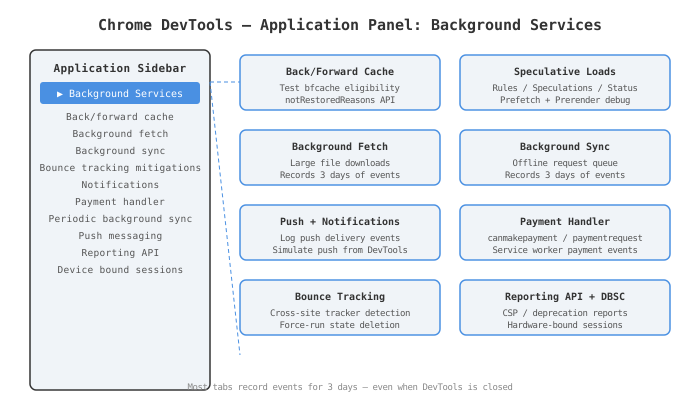
Open DevTools (F12 or right-click > Inspect), go to the Application tab, and scroll the left sidebar until you hit the “Background Services” section. You’ll find a list covering essentially every “invisible” API Chrome supports:
- Back/forward cache
- Background fetch
- Background sync
- Bounce tracking mitigations
- Notifications
- Payment handler
- Periodic background sync
- Push messaging
- Reporting API
- Device bound sessions
What makes this panel genuinely useful is that several tabs can record events for up to three days, even when DevTools is not open [1]. Set a recording, walk away, come back the next morning — the events are there. That’s unusual for browser tooling, and it changes how you debug async behavior that’s hard to reproduce on demand.
Back/Forward Cache
The back/forward cache (bfcache) is one of those browser features that’s been around since 2020 but still surprises developers — usually when they realise their page isn’t using it. The idea: when a user navigates away from your page, Chrome keeps the full page — JavaScript heap, DOM, scroll position, everything — frozen in memory. If they hit the back button, Chrome thaws and restores it instantly, with no network round trips, no re-rendering, no JS re-execution [2].
The measured performance gains are significant. Bfcache restores can happen in under 100ms — faster than anything achievable through conventional load optimisation [2]. It essentially makes back/forward navigation free.
The frustrating part used to be not knowing whether your page was actually eligible. That improved substantially in Chrome 123 with two things:
- The Test back/forward cache button in DevTools (Application > Back/forward cache > Run Test). Chrome navigates you away and back, then tells you explicitly whether bfcache worked — and if it didn’t, exactly why.
- The
notRestoredReasonsAPI, which lets you query programmatically what blocked bfcache on any given navigation [3].
The panel categorises blockers as “Actionable” (things you can fix) or “Not actionable” (browser-level decisions). Common actionable blockers include:
unloadevent listeners attached to the page — replace them withpagehidehandlers that checkevent.persisted- Open IndexedDB transactions that haven’t closed before navigation
Cache-Control: no-storeheaders — historically a hard block, but Chrome began allowing bfcache for these pages under limited conditions in early 2025, completing its full rollout to 100% of users in April 2025 [4]
If the test flags your page as ineligible, read the reasons carefully. The panel is specific enough to be actionable — it tells you which frame, which script, which reason. Not just “blocked.”
Speculative Loads
If bfcache optimises the back button, Speculative Loads targets the forward one. The Speculation Rules API lets you instruct Chrome to prefetch or prerender pages you think the user is likely to navigate to next [5].
The difference between the two modes matters:
| Mode | What Chrome does | Resource cost |
|---|---|---|
| Prefetch | Downloads HTML + some subresources | Low — no JS execution |
| Prerender | Fully renders the page in a hidden background process | Higher — full page lifecycle |
Prerender is the impressive one. When it works and the user clicks, the navigation is instant — the page is already fully rendered, the Largest Contentful Paint has already happened, JavaScript has already run.
Real-world results back this up. Monrif, an Italian media group, applied prerendering to their highest-traffic article URLs in early 2025 and saw up to a 17.9% improvement in LCP and a peak 8.9% increase in user engagement in some audience segments [6]. Those aren’t typical performance win numbers. That’s the kind of uplift that moves product dashboards.
To debug in DevTools: Application > Background Services > Speculative loads. The section has three views [7]:
- Speculative loads — current speculative status for the page, plus which URLs it’s attempting to preload
- Rules — the JSON speculation rule sets currently active on the page
- Speculations — a table of every attempt with target URL, action (prefetch or prerender), which rule triggered it, and current status
If a speculation fails, clicking the row in the Speculations table shows the full failure reason. Useful for tracking down URL mismatches, opted-out origins, or prerender quota limits. When a prerender is actively running, DevTools also lets you switch its context to inspect the hidden background render directly — running Network, Console, or Performance inside a page the user hasn’t navigated to yet.
Worth flagging: WordPress 6.8 (released March 2025) baked the Speculation Rules API into WordPress core. If you run a WordPress site and you haven’t looked at this panel recently, there’s a real chance speculations are already running [7].
Background Fetch
Standard fetch() requests die the moment the tab closes. That’s by design — it would be alarming if arbitrary web pages could run network requests in the background indefinitely. Background Fetch is the explicitly permitted version of that — a download that survives tab closure, with user-visible progress and native cancellation controls.
The use cases that motivated the API were large media files: a podcast app needing a 300MB episode, a streaming service caching offline content, a game pre-loading assets. But there’s a newer angle that’s increasingly relevant. Web.dev’s guidance on using Background Fetch for AI model downloads covers the case where model weights can be several gigabytes — completely impractical to download inside a page lifecycle, but manageable as a background fetch [9].
The flow works through the service worker:
- Call
registration.backgroundFetch.fetch()with an ID and the list of resources - The browser handles the download, showing native progress UI (users can pause or cancel)
- When complete, the browser wakes your service worker to process the downloaded response
To debug: Application > Background Services > Background Fetch > click Record. Trigger a fetch from your page, watch events log to the table, click any event to see full detail. The three-day recording window means you can verify a background download that completes well after you’ve closed DevTools [1].
One caveat: Background Fetch is a Chromium-specific feature [10]. It doesn’t exist in Firefox or Safari. If you’re building cross-browser, plan a fallback path.
Background Sync
Background Sync is the counterpart — it’s about sending data reliably, not receiving it. The scenario: a user submits a form, queues a message, or fires an analytics event while on a flaky connection. Standard fetch fails silently. Background Sync queues the request and delivers it the next time the device has a reliable connection, no manual retry required [8].
The Workbox Background Sync module makes this practical. Its BackgroundSyncPlugin hooks into fetch failure events — specifically, when a network error throws an exception, not when you get a 4xx or 5xx response — and queues failed requests to IndexedDB for later retry with exponential backoff.
A testing mistake that trips people up: the “Offline” checkbox in the Service Workers section of the Application panel does not block service worker network requests. It only affects page-level fetch calls. If you’re testing background sync behaviour, you need to actually disable your network adapter or use the Network panel’s throttling presets. Testing with the service worker offline checkbox will make sync appear to work when it shouldn’t.
To debug: Application > Background Services > Background Sync > click Record. Trigger background sync activity, watch events populate the table with tag name, origin, and timestamp.
Push Messaging and Notifications
These two work together, so it makes sense to look at them side by side. Push Messaging is how your server delivers a message to a user’s browser even when they’re not on your site. Notifications is how that message gets shown to the user.
The debugging problem with push is timing. You need a server to send it, delivery is asynchronous, and the service worker processes it in the background. The Push Messaging tab records these events for three days — so you can set a recording before triggering a push from your server and inspect exactly what arrived, in what order, with what payload [1].
For Notifications: Application > Background Services > Notifications > click Record. When your service worker calls self.registration.showNotification(), the event logs with full detail — title, body, icon, badge, actions, every option you passed in.
There’s a shortcut that doesn’t require your server at all: the Service Workers section (just above Background Services in the sidebar) has a Push input field and button. Type a payload, click Push, and DevTools fires a synthetic push event at your registered service worker. Ideal for verifying your push handler logic without standing up server infrastructure.
Payment Handler
The Payment Handler API lets a web app act as a payment method inside the standard Web Payments flow [14]. Rather than redirecting users out to a third-party payment processor, your service worker intercepts the payment request and handles the transaction in-context — cleaner UX for wallets, buy-now-pay-later services, and web-based payment apps.
Two service worker events drive the whole thing:
canmakepayment— fires when a merchant callsnew PaymentRequest(). Your service worker responds with whether it can handle this particular payment.paymentrequest— fires when the user selects your payment app from the browser payment sheet and taps confirm. This is where you do the actual transaction.
To debug: Application > Background Services > Payment Handler > click Record. Both events log to the table with full detail on the payment method data and merchant info.
Practical local development note: the Payment Request API requires HTTPS, but Chrome exempts localhost by default. You can test locally without setting up a self-signed certificate.
Bounce Tracking Mitigations
Honestly, this is the most niche tab in the panel. But if your work touches analytics, ad tech, SSO flows, or anything involving cross-site redirects, you need to be aware of it — because it can silently delete state you depend on.
Bounce tracking is a privacy evasion technique. A user clicks a link, gets transparently bounced through a tracker domain in under a second, and that tracker gets to set or read cookies in a first-party context — even with third-party cookies fully blocked. It’s why blocking third-party cookies alone doesn’t solve cross-site tracking.
Chrome’s mitigation identifies sites that exhibit these patterns and deletes their stored state entirely — cookies, localStorage, cache storage, all of it [11]. The DevTools tab at Application > Background Services > Bounce Tracking Mitigations lets you force-run the deletion check manually and see exactly which site origins had their state removed.
To test it:
- In
chrome://flags, set “Bounce Tracking Mitigations” to Enabled With Deletion - Block third-party cookies in Chrome Settings > Privacy and security
- Application > Background Services > Bounce Tracking Mitigations > click Force Run
The Issues tab will also surface a warning for suspicious redirect chains: “Chrome may soon delete state for intermediate websites in a recent navigation chain.” If your OAuth or SSO implementation triggers that warning, you have an investigation to run. Legitimate auth redirects can look like bounce tracking if the hop timing is similar.
Reporting API
The Reporting API sounds boring until you realise it’s giving you visibility into silent production failures you have no other mechanism to observe [12]. The API collects CSP violations, deprecated API calls, network errors, Permission Policy violations, and crash reports, then sends them to an endpoint you configure.
Configuration is a single response header:
Reporting-Endpoints: default="https://yoursite.com/csp-reports"
Chrome batches reports and delivers them to that URL. The DevTools panel (Application > Background Services > Reporting API) breaks this down into three sections:
- Reports table — every pending and sent report, with type, URL, timestamp, and delivery status
- Report body — click any report row to see the full JSON payload
- Endpoints — a summary of configured endpoints and whether Chrome successfully reached them
The status column is the most useful part in practice. Reports flow through states: Queued → Pending → Success (or MarkedForRemoval if they fail). If reports sit in “Pending” indefinitely, something is wrong with your endpoint — commonly a CORS misconfiguration, a 4xx response, or a typo in the header value.
CSP violations are the most common use case and probably the best argument for wiring up the Reporting API even if you’re not doing anything else with it. Without it, you deploy a content security policy and get zero signal about what’s being blocked in production. With it, you get a structured log of every violation across every real user session.
Device Bound Sessions
This is the newest entry in the panel and arguably the most security-significant feature Chrome has shipped in years. Device Bound Session Credentials (DBSC) addresses a specific, well-understood attack: session cookie theft.
The attack works like this. Malware on a user’s machine, a compromised browser extension, or a local privilege escalation lets an attacker export session cookies. Those cookies, replayed from the attacker’s machine, authenticate as the victim — MFA or not, because the MFA was already satisfied and the cookie is the credential.
DBSC breaks this by cryptographically binding the session to the specific physical device [13]. At login, Chrome generates a key pair and stores the private key in the device’s secure hardware — a Trusted Platform Module (TPM) when one is available. Sessions use short-lived cookies. When a cookie expires, Chrome must prove possession of the private key before the server issues a fresh one. An attacker who steals the cookie cannot prove possession of a key that never left the device.
For developers implementing DBSC, the server-side changes are [14]:
- Include a
Secure-Session-Registrationheader in your login response, specifying the refresh endpoint URL and session configuration - Expose a refresh endpoint that validates the cryptographic key possession proof before issuing new cookies
DBSC became generally available for Windows users on Chrome 146 in early 2026, with macOS expansion announced shortly after [14]. A second origin trial opened in October 2025 to collect real-world implementation feedback.
In DevTools, the Application panel’s Device Bound Sessions section lets you view active DBSC sessions, inspect their bound domains, and delete them — useful for verifying your logout flow terminates sessions correctly, and for confirming that session binding is registered for the expected origin. Full debugging tooling is still being built out; for now, Chrome histograms and network response headers fill the gaps the panel doesn’t yet cover.
The underlying spec is being developed through the W3C Web Application Security working group, so DBSC is being designed for eventual cross-browser adoption — not a permanent Chrome-only feature.
Between bfcache giving you near-instant back navigation, speculative loads prerendering pages before users click, background sync ensuring no user action gets silently dropped on a flaky connection, and DBSC preventing session hijacking at the hardware level — the Background Services panel is quietly one of the most important and least-explored sections in all of Chrome DevTools.
End
Sources
- Debug background services | Chrome DevTools
- Back/forward cache | web.dev
- Back/forward cache notRestoredReasons API | Chrome for Developers
- Enabling bfcache for Cache-Control: no-store | Chrome for Developers
- Prerender pages in Chrome for instant page navigations | Chrome for Developers
- How Monrif improved engagement by 8.9% and reduced LCP by 17.9% with Speculation Rules prerender | web.dev
- Debug speculation rules with Chrome DevTools | Chrome for Developers
- workbox-background-sync | Chrome for Developers
- Download AI models with the Background Fetch API | web.dev
- Introducing Background Fetch | Chrome for Developers
- Help test bounce tracking mitigations | Chrome for Developers
- Monitor your web application with the Reporting API | Chrome for Developers
- Device Bound Session Credentials (DBSC) | Chrome for Developers
- Device Bound Session Credentials now available on Windows | Chrome for Developers
- Web-based Payment Handler API | MDN Web Docs