तुमचे वेब अॅप कदाचित अशा गोष्टी करत आहे ज्या तुम्ही कधी प्रत्यक्षात डीबग केल्या नाहीत. वापरकर्त्याने काही क्लिक करण्यापूर्वीच पेजेस प्री-रेंडर होत आहेत, ऑफलाइन असताना फॉर्म सबमिशन्स शांतपणे रांगेत लावल्या जात आहेत, झोपलेल्या सर्व्हिस वर्कर कडे पुश नोटिफिकेशन्स येत आहेत, सेशन्स हार्डवेअर कीजना क्रिप्टोग्राफिकली बांधल्या जात आहेत — हे सर्व Chrome च्या background service APIs द्वारे होते, पूर्णपणे अदृश्यपणे. Chrome DevTools मधील Background Services पॅनेल म्हणजे तुम्हाला हे सर्व शेवटी पाहता येण्याची जागा.
पॅनेल कुठे सापडेल
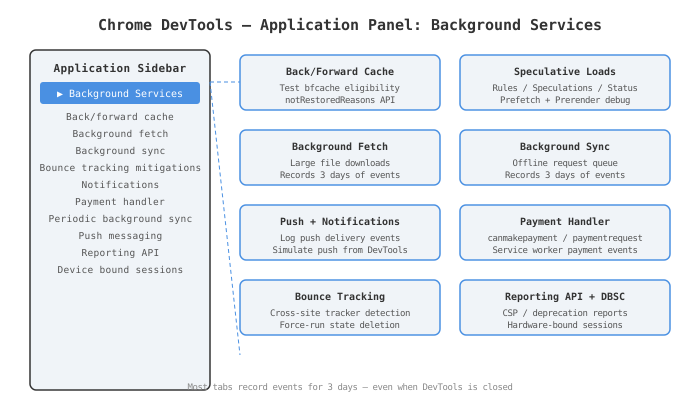
DevTools उघडा (F12 किंवा right-click > Inspect), Application टॅबवर जा, आणि डाव्या sidebar मधून खाली scroll करा जोपर्यंत “Background Services” विभाग दिसत नाही. तुम्हाला Chrome सपोर्ट करत असलेल्या प्रत्येक “अदृश्य” API ला कव्हर करणारी यादी मिळेल:
- Back/forward cache
- Background fetch
- Background sync
- Bounce tracking mitigations
- Notifications
- Payment handler
- Periodic background sync
- Push messaging
- Reporting API
- Device bound sessions
या पॅनेलला खरोखर उपयुक्त बनवणारी गोष्ट म्हणजे अनेक टॅब्स DevTools उघडे नसतानाही तीन दिवसांपर्यंत events रेकॉर्ड करू शकतात [1]. एक रेकॉर्डिंग सेट करा, निघून जा, दुसऱ्या दिवशी सकाळी परत या — events तिथेच असतात. ब्राउझर टूलिंगसाठी हे असामान्य आहे, आणि त्यामुळे async वर्तन डीबग करण्याचा मार्ग बदलतो जे मागणीनुसार पुन्हा तयार करणे कठीण असते.
Back/Forward Cache
Back/forward cache (bfcache) हे त्या ब्राउझर फीचर्सपैकी एक आहे जे 2020 पासून अस्तित्वात आहे परंतु अजूनही developers ना आश्चर्यचकित करते — सहसा जेव्हा त्यांना कळते की त्यांचे पेज bfcache वापरत नाही. कल्पना: जेव्हा वापरकर्ता तुमच्या पेजवरून navigate करतो, Chrome संपूर्ण पेज — JavaScript heap, DOM, scroll position, सर्व काही — memory मध्ये frozen ठेवतो. जर ते back बटण दाबले, तर Chrome ते thaw करून तात्काळ restore करते, कोणतेही network round trips नाहीत, कोणताही re-rendering नाही, JS re-execution नाही [2].
मोजलेले performance gains लक्षणीय आहेत. Bfcache restores 100ms पेक्षा कमी वेळात होऊ शकतात — पारंपारिक load optimization द्वारे साध्य होण्यापेक्षा जलद [2]. हे मूलतः back/forward navigation विनामूल्य बनवते.
निराशाजनक भाग म्हणजे तुमचे पेज खरोखर eligible आहे का हे जाणून न घेणे. Chrome 123 मध्ये दोन गोष्टींसह हे मोठ्या प्रमाणात सुधारले:
- DevTools मधील Test back/forward cache बटण (Application > Back/forward cache > Run Test). Chrome तुम्हाला navigate करून परत आणते, नंतर bfcache काम केले का हे स्पष्टपणे सांगते — आणि नाही केले असेल तर, नक्की का.
notRestoredReasonsAPI, जे तुम्हाला कोणत्याही navigation वर bfcache ला block केलेले काय होते हे प्रोग्रामॅटिकली query करू देते [3].
पॅनेल blockers ला “Actionable” (तुम्ही दुरुस्त करू शकता अशा गोष्टी) किंवा “Not actionable” (browser-level निर्णय) म्हणून वर्गीकृत करते. सामान्य actionable blockers मध्ये हे समाविष्ट आहे:
- पेजला attached
unloadevent listeners — त्यांनाpagehidehandlers ने बदला जेevent.persistedतपासतात - Navigation पूर्वी बंद न केलेले open IndexedDB transactions
Cache-Control: no-storeheaders — ऐतिहासिकदृष्ट्या एक hard block, परंतु Chrome ने 2025 च्या सुरुवातीस मर्यादित परिस्थितींमध्ये या pages साठी bfcache परवानगी देणे सुरू केले, एप्रिल 2025 मध्ये 100% वापरकर्त्यांना त्याचा पूर्ण rollout पूर्ण केला [4]
जर test तुमचे पेज ineligible म्हणून flag करत असेल, तर कारणे काळजीपूर्वक वाचा. पॅनेल इतके specific आहे की ते actionable आहे — ते तुम्हाला कोणता frame, कोणती script, कोणते कारण सांगते. फक्त “blocked” नाही.
Speculative Loads
जर bfcache back बटणाला optimize करते, तर Speculative Loads forward बटणाला target करते. Speculation Rules API तुम्हाला Chrome ला सूचना देण्याची परवानगी देते की वापरकर्ता पुढे navigate करण्याची शक्यता असलेल्या pages prefetch किंवा prerender करा [5].
दोन modes मधील फरक महत्त्वाचा आहे:
| Mode | Chrome काय करते | Resource cost |
|---|---|---|
| Prefetch | HTML + काही subresources download करते | कमी — JS execution नाही |
| Prerender | पेज एका hidden background process मध्ये पूर्णपणे render करते | जास्त — full page lifecycle |
Prerender हे प्रभावशाली आहे. जेव्हा ते काम करते आणि वापरकर्ता क्लिक करतो, तेव्हा navigation instant असते — पेज आधीच पूर्णपणे render झालेले आहे, Largest Contentful Paint आधीच झाला आहे, JavaScript आधीच run झाले आहे.
वास्तविक-जगातील परिणाम याची पुष्टी करतात. Monrif, एक Italian media group, ने 2025 च्या सुरुवातीस त्यांच्या highest-traffic article URLs वर prerendering लागू केले आणि काही audience segments मध्ये LCP मध्ये 17.9% सुधारणा आणि user engagement मध्ये peak 8.9% वाढ दिसून आली [6]. हे सामान्य performance win numbers नाहीत. हे product dashboards हलवणारे उत्थान आहे.
DevTools मध्ये debug करण्यासाठी: Application > Background Services > Speculative loads. या section मध्ये तीन views आहेत [7]:
- Speculative loads — पेजसाठी current speculative status, तसेच कोणते URLs preload करण्याचा प्रयत्न करत आहे
- Rules — पेजवर सध्या active असलेले JSON speculation rule sets
- Speculations — प्रत्येक attempt ची एक table ज्यात target URL, action (prefetch किंवा prerender), कोणता rule triggered केला, आणि current status आहे
जर एखादी speculation fail होत असेल, तर Speculations table मधील row वर क्लिक केल्याने full failure reason दिसतो. URL mismatches, opted-out origins, किंवा prerender quota limits track करण्यासाठी उपयुक्त. जेव्हा एखादा prerender सक्रियपणे चालत असतो, तेव्हा DevTools तुम्हाला त्याचा context switch करून hidden background render थेट inspect करू देते — वापरकर्त्याने navigate न केलेल्या page च्या आत Network, Console, किंवा Performance चालवणे.
लक्षात घेण्यासारखे: WordPress 6.8 (मार्च 2025 मध्ये release झाले) ने Speculation Rules API WordPress core मध्ये समाविष्ट केले. जर तुम्ही WordPress site चालवत असाल आणि तुम्ही अलीकडे हे पॅनेल पाहिले नसेल, तर आधीच speculations चालत असण्याची खरी शक्यता आहे [7].
Background Fetch
Standard fetch() requests tab बंद होताच मरतात. हे design द्वारे आहे — जर arbitrary web pages indefinitely background मध्ये network requests चालवू शकतील तर ते alarming असेल. Background Fetch हे त्याची explicitly permitted version आहे — एक download जी tab closure survive करते, user-visible progress आणि native cancellation controls सह.
API ला motivate करणारे use cases मोठे media files होते: एक podcast app ला 300MB episode हवे असते, एक streaming service offline content cache करत असते, एक game assets pre-load करत असतो. परंतु एक नवीन angle आहे जे increasingly relevant आहे. AI model downloads साठी Background Fetch वापरण्यावर web.dev चे guidance तो case कव्हर करते जिथे model weights अनेक gigabytes असू शकतात — page lifecycle च्या आत download करणे पूर्णपणे impractical, परंतु background fetch म्हणून manageable [9].
Flow service worker द्वारे काम करते:
- ID आणि resources च्या यादीसह
registration.backgroundFetch.fetch()call करा - Browser download handle करतो, native progress UI दाखवतो (वापरकर्ते pause किंवा cancel करू शकतात)
- Complete झाल्यावर, browser तुमचे service worker downloaded response process करण्यासाठी wake करतो
Debug करण्यासाठी: Application > Background Services > Background Fetch > Record वर क्लिक करा. तुमच्या page वरून fetch trigger करा, events table मध्ये log होताना पहा, कोणत्याही event वर क्लिक करून full detail पहा. तीन-दिवसांचे recording window म्हणजे तुम्ही DevTools बंद केल्यानंतर बराच वेळाने complete होणारे background download verify करू शकता [1].
एक caveat: Background Fetch एक Chromium-specific feature आहे [10]. Firefox किंवा Safari मध्ये ते अस्तित्वात नाही. जर तुम्ही cross-browser build करत असाल, तर fallback path plan करा.
Background Sync
Background Sync हा counterpart आहे — हे data विश्वसनीयरित्या पाठवण्याबद्दल आहे, प्राप्त करण्याबद्दल नाही. Scenario: एक वापरकर्ता flaky connection वर form submit करतो, message queue करतो, किंवा analytics event fire करतो. Standard fetch silently fail होतो. Background Sync request queue करतो आणि device ला reliable connection मिळेल तेव्हा deliver करतो, कोणताही manual retry आवश्यक नाही [8].
Workbox Background Sync module हे practical बनवतो. त्याचे BackgroundSyncPlugin fetch failure events ला hook करते — specifically, जेव्हा network error exception throw करतो, 4xx किंवा 5xx response मिळाल्यावर नाही — आणि failed requests IndexedDB मध्ये exponential backoff सह later retry साठी queue करतो.
एक testing mistake जी लोकांना trip करते: Application panel च्या Service Workers section मधील “Offline” checkbox service worker network requests block करत नाही. हे फक्त page-level fetch calls ला affect करते. जर तुम्ही background sync behavior test करत असाल, तर तुम्हाला प्रत्यक्षात network adapter disable करावे लागेल किंवा Network panel चे throttling presets वापरावे लागतील. Service worker offline checkbox सह test केल्याने sync काम करत असल्यासारखे वाटेल जेव्हा ते नसावे.
Debug करण्यासाठी: Application > Background Services > Background Sync > Record वर क्लिक करा. Background sync activity trigger करा, events table मध्ये tag name, origin, आणि timestamp सह populate होताना पहा.
Push Messaging आणि Notifications
हे दोन एकत्र काम करतात, त्यामुळे त्यांना side by side पाहणे योग्य आहे. Push Messaging म्हणजे तुमचा server वापरकर्त्याच्या browser ला message deliver करण्याचा मार्ग जरी ते तुमच्या site वर नसतानाही. Notifications म्हणजे तो message वापरकर्त्याला कसा दाखवला जातो.
Push सह debugging problem म्हणजे timing. तुम्हाला ते पाठवण्यासाठी server हवा, delivery asynchronous आहे, आणि service worker ते background मध्ये process करतो. Push Messaging tab हे events तीन दिवसांसाठी record करतो — त्यामुळे तुम्ही server वरून push trigger करण्यापूर्वी recording सेट करू शकता आणि नक्की काय आले, कोणत्या क्रमाने, कोणत्या payload सह हे inspect करू शकता [1].
Notifications साठी: Application > Background Services > Notifications > Record वर क्लिक करा. जेव्हा तुमचे service worker self.registration.showNotification() call करते, तेव्हा event full detail सह log होतो — title, body, icon, badge, actions, तुम्ही pass केलेले प्रत्येक option.
एक shortcut आहे जे तुमच्या server ची आवश्यकता अजिबात नाही: sidebar मध्ये Background Services च्या वर असलेल्या Service Workers section मध्ये एक Push input field आणि बटण आहे. Payload टाइप करा, Push वर क्लिक करा, आणि DevTools तुमच्या registered service worker ला synthetic push event fire करते. Server infrastructure उभे न करता तुमची push handler logic verify करण्यासाठी आदर्श.
Payment Handler
Payment Handler API एका web app ला standard Web Payments flow च्या आत payment method म्हणून act करण्याची परवानगी देते [14]. वापरकर्त्यांना third-party payment processor कडे redirect करण्याऐवजी, तुमचे service worker payment request intercept करते आणि in-context transaction handle करते — wallets, buy-now-pay-later services, आणि web-based payment apps साठी cleaner UX.
दोन service worker events संपूर्ण flow चालवतात:
canmakepayment— जेव्हा merchantnew PaymentRequest()call करतो तेव्हा fires होते. तुमचे service worker हे particular payment handle करू शकते का याला respond करते.paymentrequest— जेव्हा वापरकर्ता browser payment sheet मधून तुमचे payment app निवडतो आणि confirm tap करतो तेव्हा fires होते. इथेच तुम्ही actual transaction करता.
Debug करण्यासाठी: Application > Background Services > Payment Handler > Record वर क्लिक करा. दोन्ही events payment method data आणि merchant info वर full detail सह table मध्ये log होतात.
Practical local development note: Payment Request API ला HTTPS आवश्यक आहे, परंतु Chrome default म्हणून localhost ला exempt करते. Self-signed certificate set up न करता तुम्ही locally test करू शकता.
Bounce Tracking Mitigations
खरे सांगायचे तर, हे panel मधील सर्वात niche tab आहे. परंतु जर तुमचे काम analytics, ad tech, SSO flows, किंवा cross-site redirects समाविष्ट असलेल्या कोणत्याही गोष्टींना स्पर्श करत असेल, तर तुम्हाला याची जाणीव असणे आवश्यक आहे — कारण ते state silently delete करू शकते ज्यावर तुम्ही अवलंबून आहात.
Bounce tracking ही एक privacy evasion technique आहे. वापरकर्ता link वर क्लिक करतो, एक सेकंदापेक्षा कमी वेळात transparently tracker domain द्वारे bounce केला जातो, आणि त्या tracker ला first-party context मध्ये cookies set किंवा read करता येतात — third-party cookies पूर्णपणे blocked असतानाही. म्हणूनच third-party cookies alone block करणे cross-site tracking solve करत नाही.
Chrome च्या mitigation ने या patterns प्रदर्शित करणाऱ्या sites ओळखतात आणि त्यांची stored state पूर्णपणे delete करतात — cookies, localStorage, cache storage, सर्व [11]. Application > Background Services > Bounce Tracking Mitigations येथे DevTools tab तुम्हाला manually deletion check force-run करू देते आणि नक्की कोणत्या site origins ची state removed झाली हे पाहू देते.
ते test करण्यासाठी:
chrome://flagsमध्ये, “Bounce Tracking Mitigations” Enabled With Deletion वर set करा- Chrome Settings > Privacy and security मध्ये third-party cookies block करा
- Application > Background Services > Bounce Tracking Mitigations > Force Run वर क्लिक करा
Issues tab suspicious redirect chains साठी warning surface करेल: “Chrome may soon delete state for intermediate websites in a recent navigation chain.” जर तुमची OAuth किंवा SSO implementation ती warning trigger करत असेल, तर तुम्हाला investigation चालवायची आहे. Legitimate auth redirects bounce tracking सारखे दिसू शकतात जर hop timing समान असेल.
Reporting API
Reporting API boring वाटते जोपर्यंत तुम्हाला जाणवत नाही की हे तुम्हाला silent production failures मध्ये visibility देत आहे ज्या observe करण्यासाठी तुमच्याकडे कोणतीही इतर mechanism नाही [12]. API CSP violations, deprecated API calls, network errors, Permission Policy violations, आणि crash reports collect करतो, नंतर तुम्ही configure केलेल्या endpoint ला पाठवतो.
Configuration म्हणजे एक single response header:
Reporting-Endpoints: default="https://yoursite.com/csp-reports"
Chrome reports batch करते आणि त्या URL ला deliver करते. DevTools panel (Application > Background Services > Reporting API) हे तीन sections मध्ये विभाजित करते:
- Reports table — प्रत्येक pending आणि sent report, type, URL, timestamp, आणि delivery status सह
- Report body — full JSON payload पाहण्यासाठी कोणत्याही report row वर क्लिक करा
- Endpoints — configured endpoints चा summary आणि Chrome ने त्यांना successfully reach केले का
Status column practice मध्ये सर्वात उपयुक्त भाग आहे. Reports states मधून flow होतात: Queued → Pending → Success (किंवा MarkedForRemoval जर ते fail होत असतील). जर reports indefinitely “Pending” मध्ये बसत असतील, तर तुमच्या endpoint मध्ये काहीतरी चुकीचे आहे — सामान्यतः CORS misconfiguration, 4xx response, किंवा header value मध्ये typo.
CSP violations हे सर्वात सामान्य use case आहे आणि कदाचित Reporting API wire up करण्याचा सर्वोत्तम युक्तिवाद आहे जरी तुम्ही त्याच्याशी इतर काही करत नसाल. त्याशिवाय, तुम्ही content security policy deploy करता आणि production मध्ये काय block होत आहे याबद्दल शून्य signal मिळतो. त्यासह, तुम्हाला प्रत्येक real user session मध्ये प्रत्येक violation चा structured log मिळतो.
Device Bound Sessions
हे panel मधील सर्वात नवीन entry आहे आणि arguably Chrome ने वर्षांत shipped केलेले सर्वात security-significant feature आहे. Device Bound Session Credentials (DBSC) एक specific, well-understood attack address करते: session cookie theft.
Attack असे काम करतो. वापरकर्त्याच्या machine वर malware, एक compromised browser extension, किंवा local privilege escalation attacker ला session cookies export करू देतो. ते cookies, attacker च्या machine वरून replay केल्या, victim म्हणून authenticate करतात — MFA असो किंवा नसो, कारण MFA आधीच satisfied झाले होते आणि cookie हे credential आहे.
DBSC हे session ला specific physical device ला cryptographically bind करून हे तोडते [13]. Login वेळी, Chrome एक key pair generate करते आणि private key device च्या secure hardware मध्ये store करते — available असल्यास Trusted Platform Module (TPM). Sessions short-lived cookies वापरतात. जेव्हा cookie expire होते, Chrome ला server नवीन cookie issue करण्यापूर्वी private key possession चे proof द्यावे लागते. जो attacker cookie steal करतो तो device न सोडलेल्या key चे possession prove करू शकत नाही.
DBSC implement करणाऱ्या developers साठी, server-side changes आहेत [14]:
- तुमच्या login response मध्ये
Secure-Session-Registrationheader समाविष्ट करा, refresh endpoint URL आणि session configuration specify करा - एक refresh endpoint expose करा जे नवीन cookies issue करण्यापूर्वी cryptographic key possession proof validate करते
DBSC 2026 च्या सुरुवातीस Chrome 146 वर Windows users साठी generally available झाले, macOS expansion नंतर लवकरच announce झाले [14]. दुसरा origin trial October 2025 मध्ये real-world implementation feedback collect करण्यासाठी उघडला.
DevTools मध्ये, Application panel चे Device Bound Sessions section तुम्हाला active DBSC sessions view करणे, त्यांचे bound domains inspect करणे, आणि ते delete करणे देते — logout flow sessions correctly terminate करतो का हे verify करण्यासाठी उपयुक्त, आणि expected origin साठी session binding registered आहे का हे confirm करण्यासाठी. Full debugging tooling अजून built out होत आहे; आत्तासाठी, Chrome histograms आणि network response headers त्या gaps fill करतात जे panel अजून कव्हर करत नाही.
Underlying spec W3C Web Application Security working group द्वारे develop होत आहे, त्यामुळे DBSC eventual cross-browser adoption साठी design केले जात आहे — कायमचे Chrome-only feature नाही.
Bfcache near-instant back navigation देत आहे, speculative loads वापरकर्ते क्लिक करण्यापूर्वी pages prerender करत आहे, background sync flaky connection वर कोणतीही user action silently drop होणार नाही याची खात्री करत आहे, आणि DBSC hardware level वर session hijacking रोखत आहे — Background Services panel Chrome DevTools मधील सर्वात महत्त्वाच्या आणि कमीत कमी explore केलेल्या sections पैकी एक आहे.
समाप्त
Sources
- Debug background services | Chrome DevTools
- Back/forward cache | web.dev
- Back/forward cache notRestoredReasons API | Chrome for Developers
- Enabling bfcache for Cache-Control: no-store | Chrome for Developers
- Prerender pages in Chrome for instant page navigations | Chrome for Developers
- How Monrif improved engagement by 8.9% and reduced LCP by 17.9% with Speculation Rules prerender | web.dev
- Debug speculation rules with Chrome DevTools | Chrome for Developers
- workbox-background-sync | Chrome for Developers
- Download AI models with the Background Fetch API | web.dev
- Introducing Background Fetch | Chrome for Developers
- Help test bounce tracking mitigations | Chrome for Developers
- Monitor your web application with the Reporting API | Chrome for Developers
- Device Bound Session Credentials (DBSC) | Chrome for Developers
- Device Bound Session Credentials now available on Windows | Chrome for Developers
- Web-based Payment Handler API | MDN Web Docs